Offline Project
Create Offline Project
When you need to implement an offline translation workflow using XLIFF files, you can select the offline type when creating a project. To create an offline project:
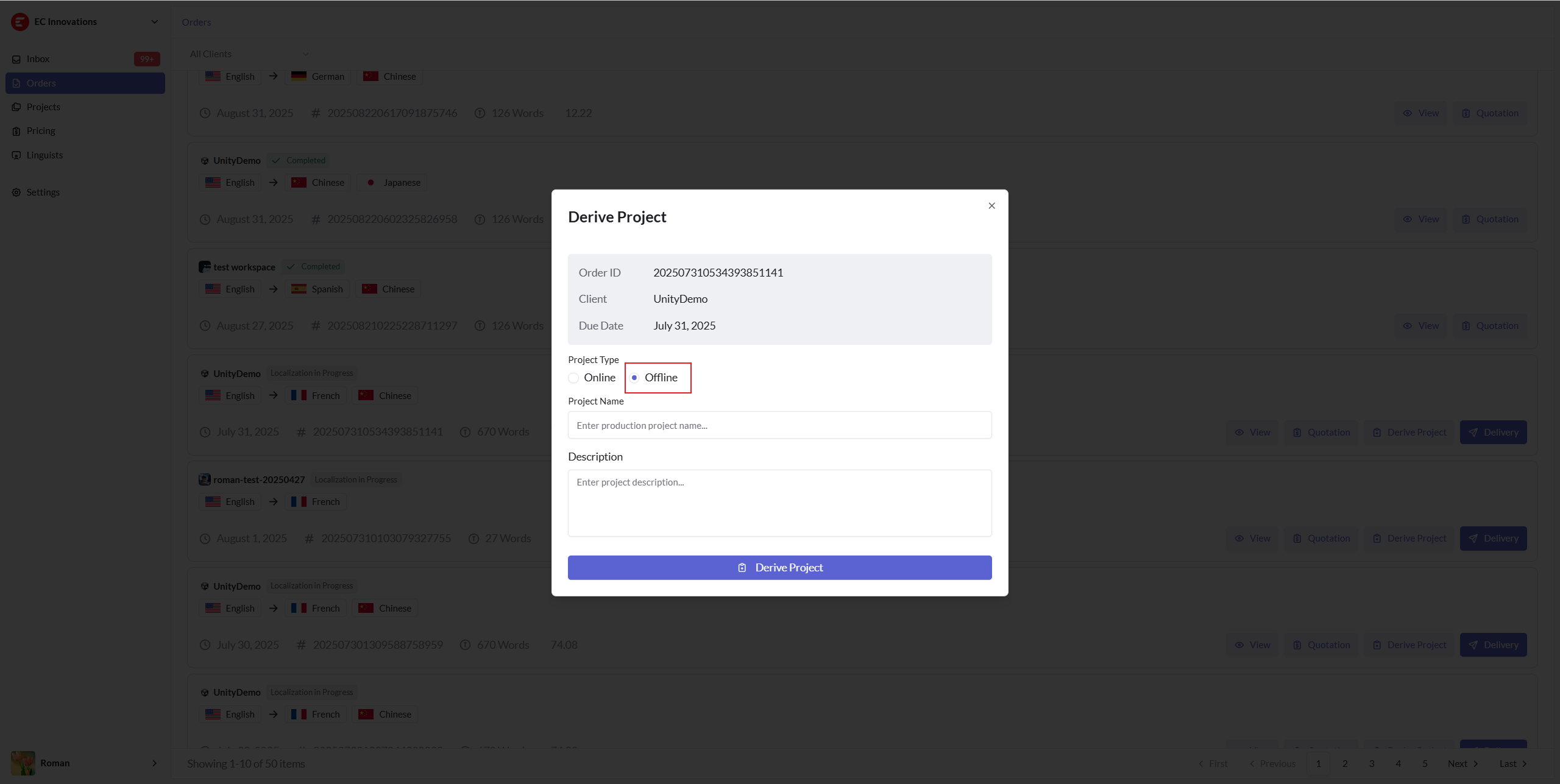
- Click the "Derive Project"
- Choose Project Type "Offline"
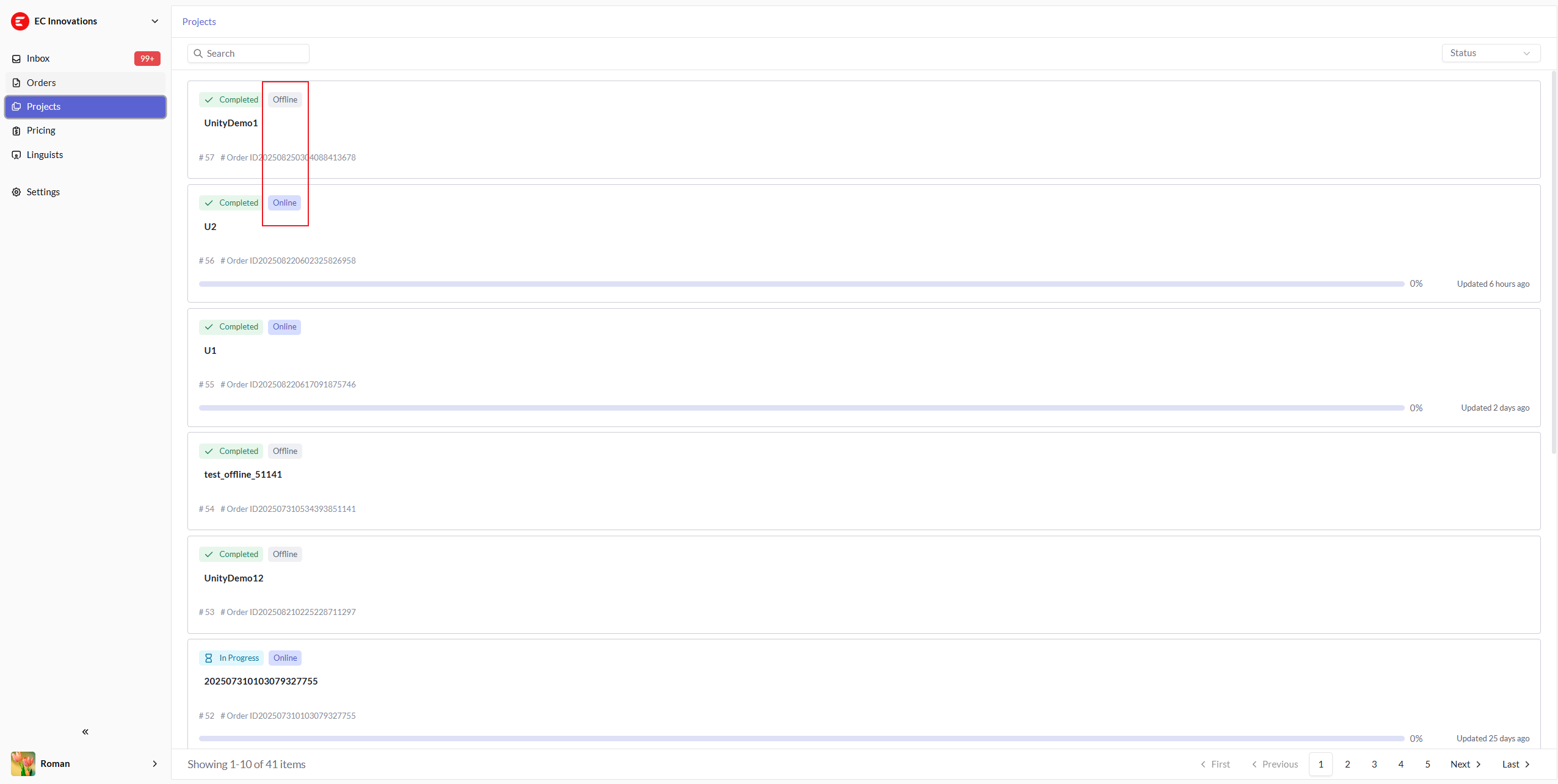
Once projects are created, you can easily distinguish between different project types in the project list through visual tags, as shown in the project list.
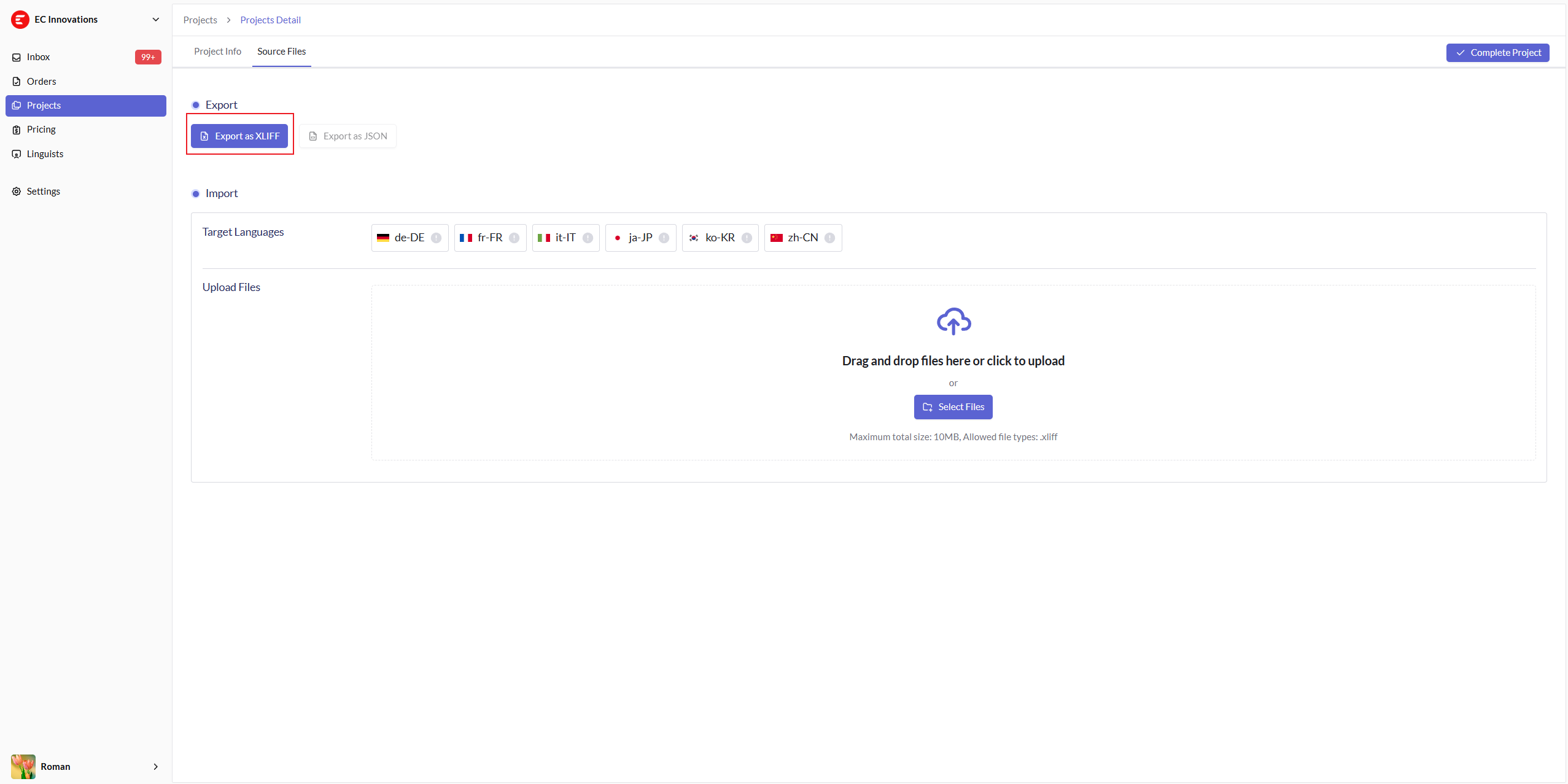
Export to Xliff file
On the project details page -> Source Files Tab, you can export Xliff files containing all target languages by clicking the export button.
Import Xliff
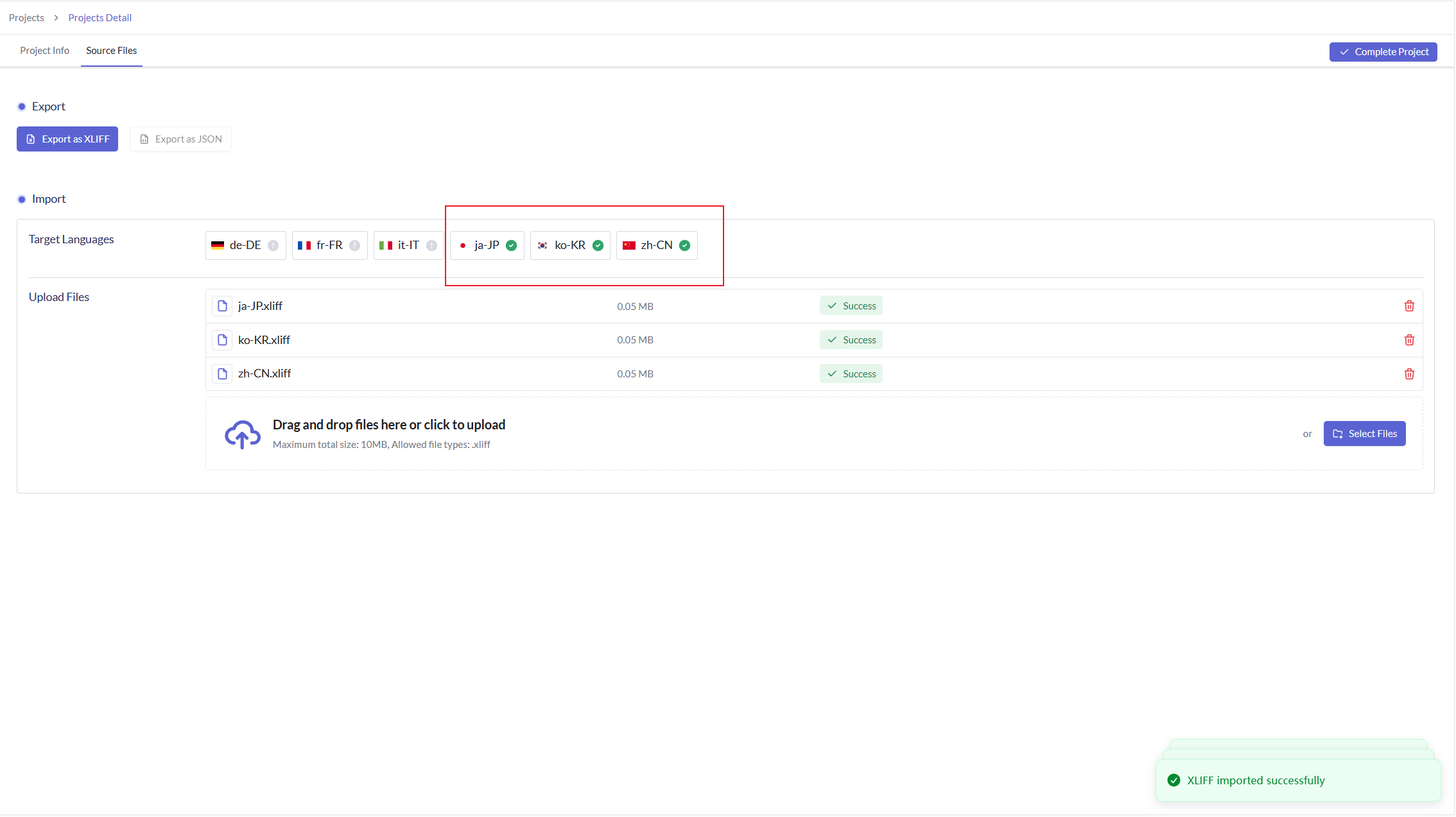
After completing offline translation work, you need to import the translated Xliff files back into the system.
Important Notes Before Import
- File Format: The export generates a ZIP file containing multiple Xliff files, but for import, you need to upload individual Xliff files (not the ZIP file)
- Extract Files: Extract the ZIP file first and upload each target language's Xliff file separately
- File Matching: Each Xliff file corresponds to one target language
- File Overwrite: If you need to modify previously imported files, you can upload the updated Xliff files again to override the existing translations
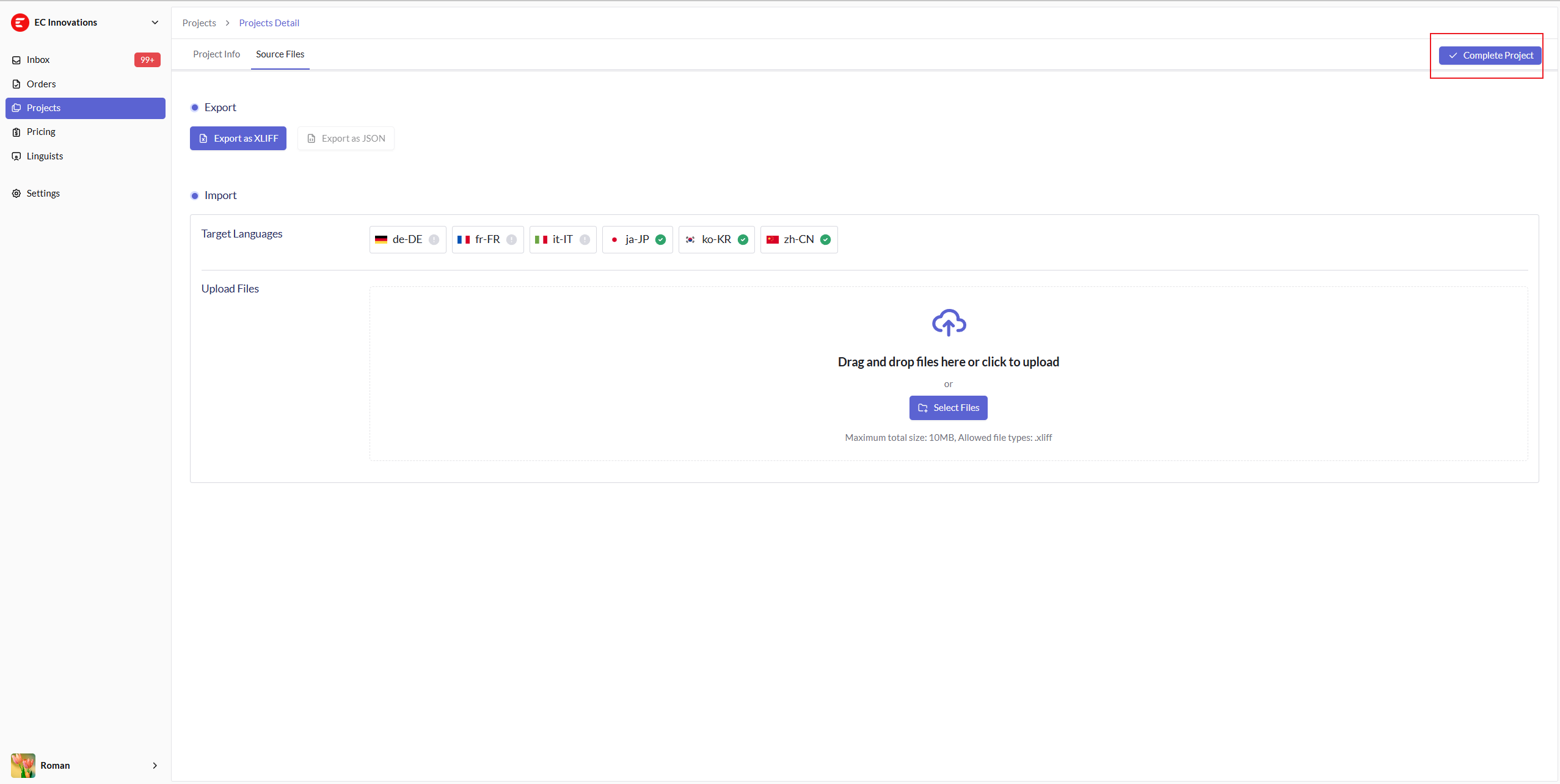
Marked as Completed
Once all translations have been imported and verified as accurate, you can mark the project as completed.
Important Notes
- Pre-Delivery Flexibility: Projects can be reopened and modified as long as they haven't been delivered yet
- Final Review: It's recommended to perform a final quality review before marking the project as completed
- Delivery Documentation: For detailed delivery procedures, please refer to the project delivery documentation