Manage a Localization Order
Create
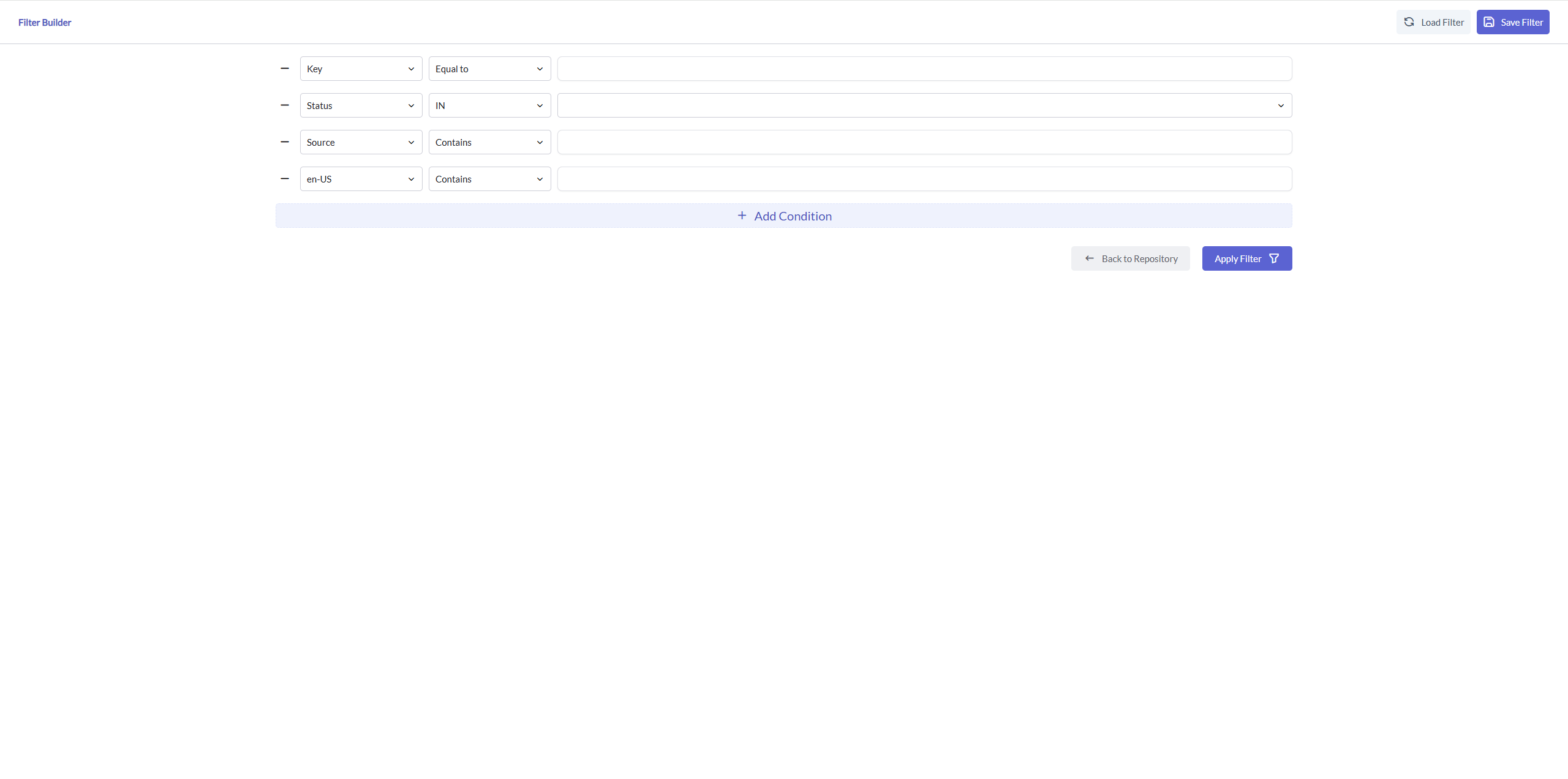
1. Filtering Orders
Before creating a localization order, first filter the existing orders to identify the content that needs to be localized:
- Use available filters to narrow down your selection:
- Filter by status
- Filter by key values
- Filter by color tags you've applied
- Filter by other relevant attributes
2. Review Filtered Results
Carefully review the filtered results to ensure they contain exactly the content you need to localize.
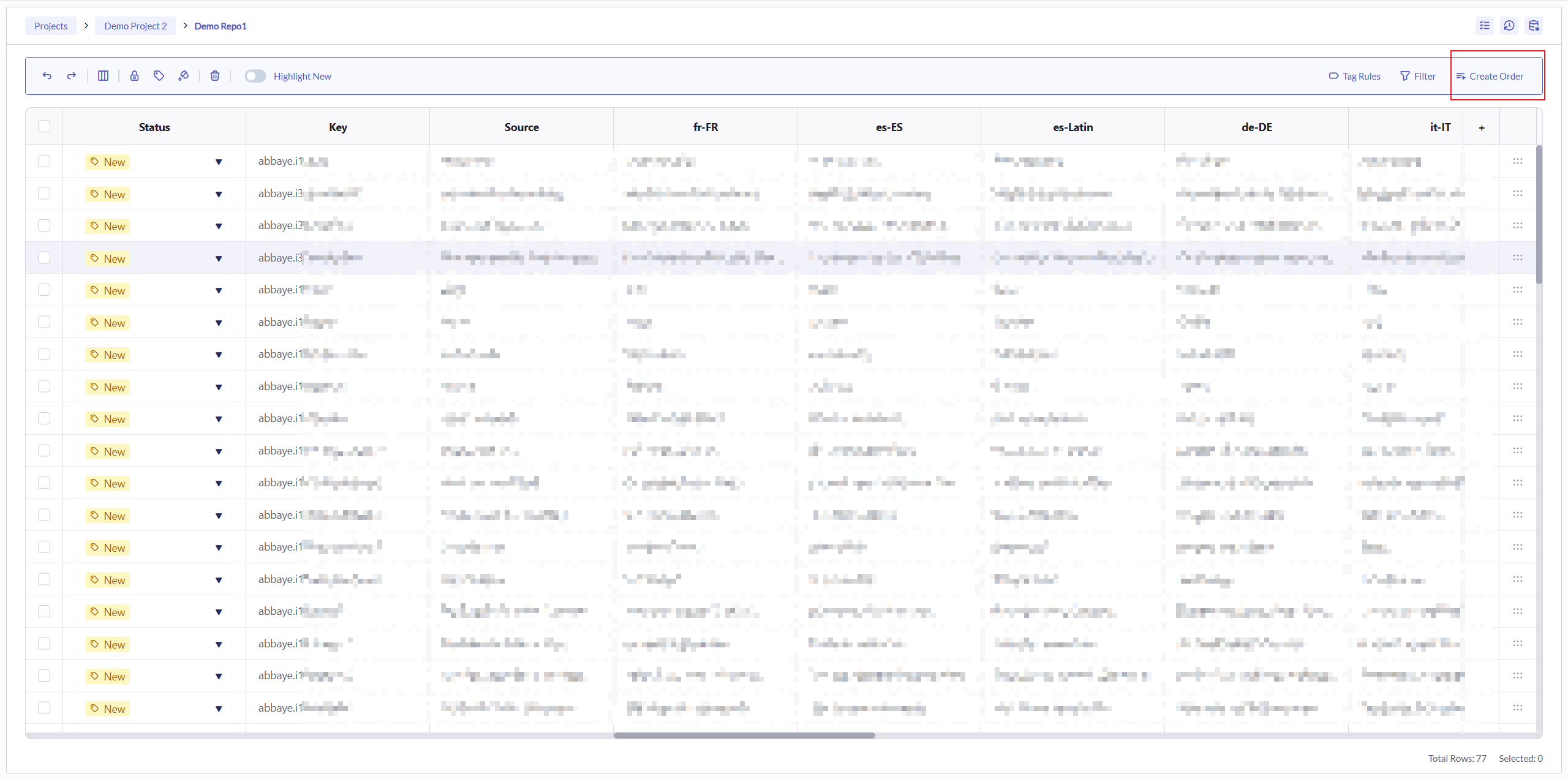
3. Create New Order
Once you've confirmed the content that you can see in current filtered results:
- Click the "Create Order" button in the top-right corner of the screen
- This will take you to the order creation page
4. Complete Order Details
On the order creation page, provide all necessary information to set up your localization order. 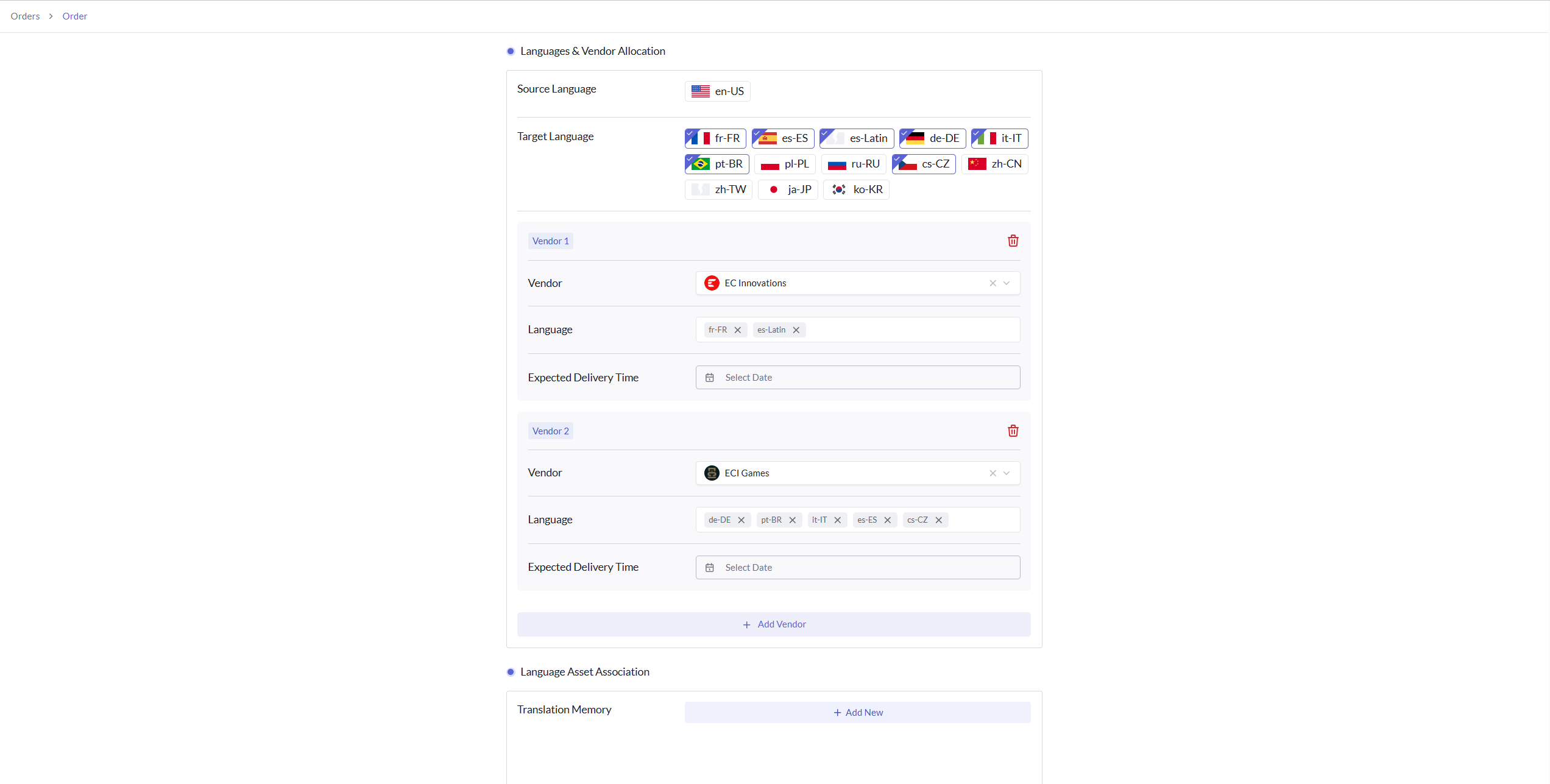
Vendor Assignment
- Select the vendors you want to assign the order to
- Distribute the candidate target languages (those configured for the current repository) across different vendors
- Set the expected delivery date for each vendor
If you encounter an error while assigning target languages, it means the vendor has no pricing for that language. Contact the vendor or our team for assistance.
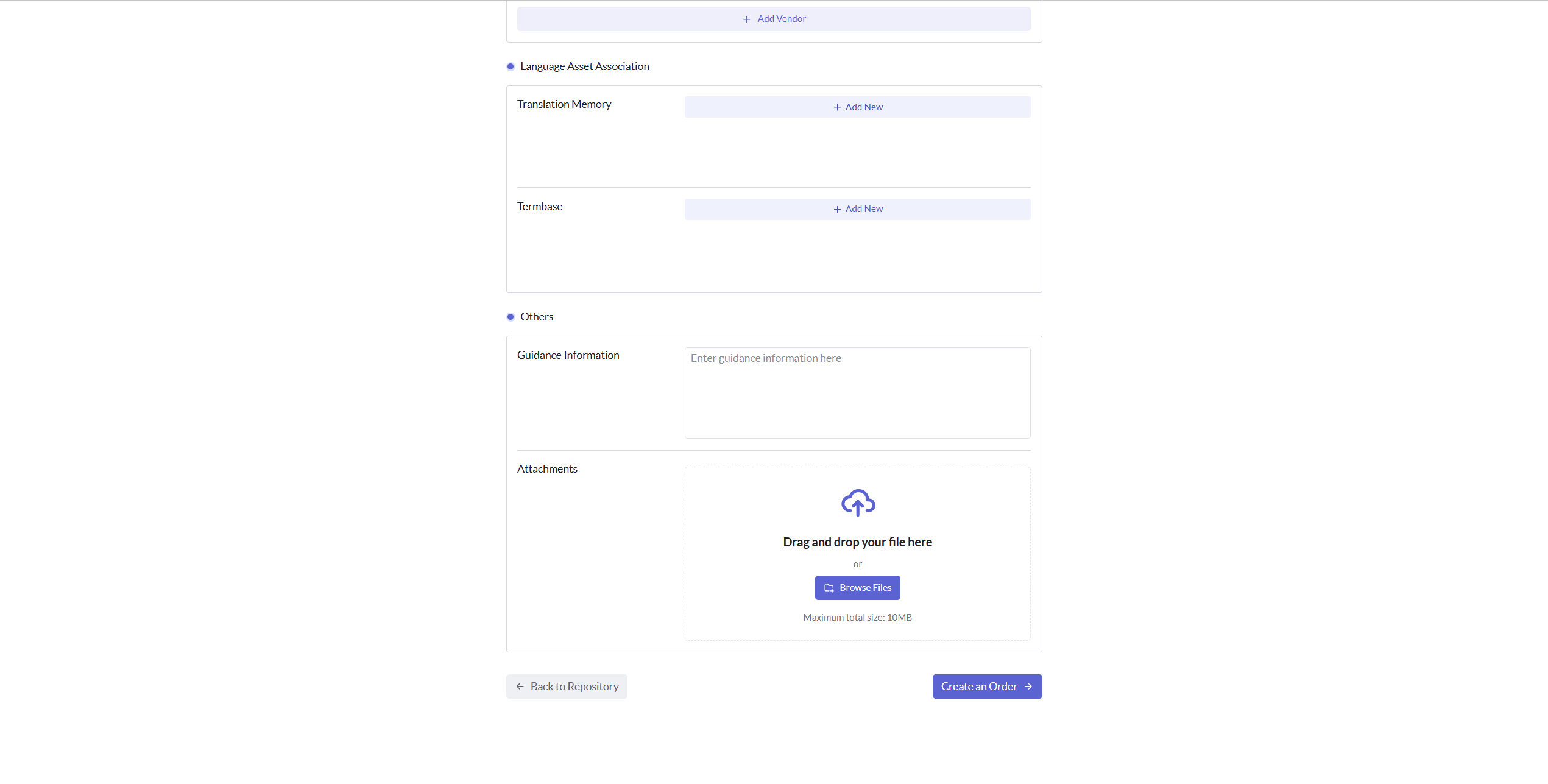
Language Assets
- Choose your translation memory (TM) files and glossaries
- These assets will be used for:
- Calculating TM discounts in the quotation
- Providing reference for linguists during translation
- Ensuring terminology consistency
Reference Materials
- Provide guidance information for the localization project manager
- Add style guides, brand guidelines, or other reference documents
- Include any special instructions or requirements for linguists
- Attach relevant files that provide context for translators
Next Steps
After creating your order, you will redirect to the order page, to manage the order. 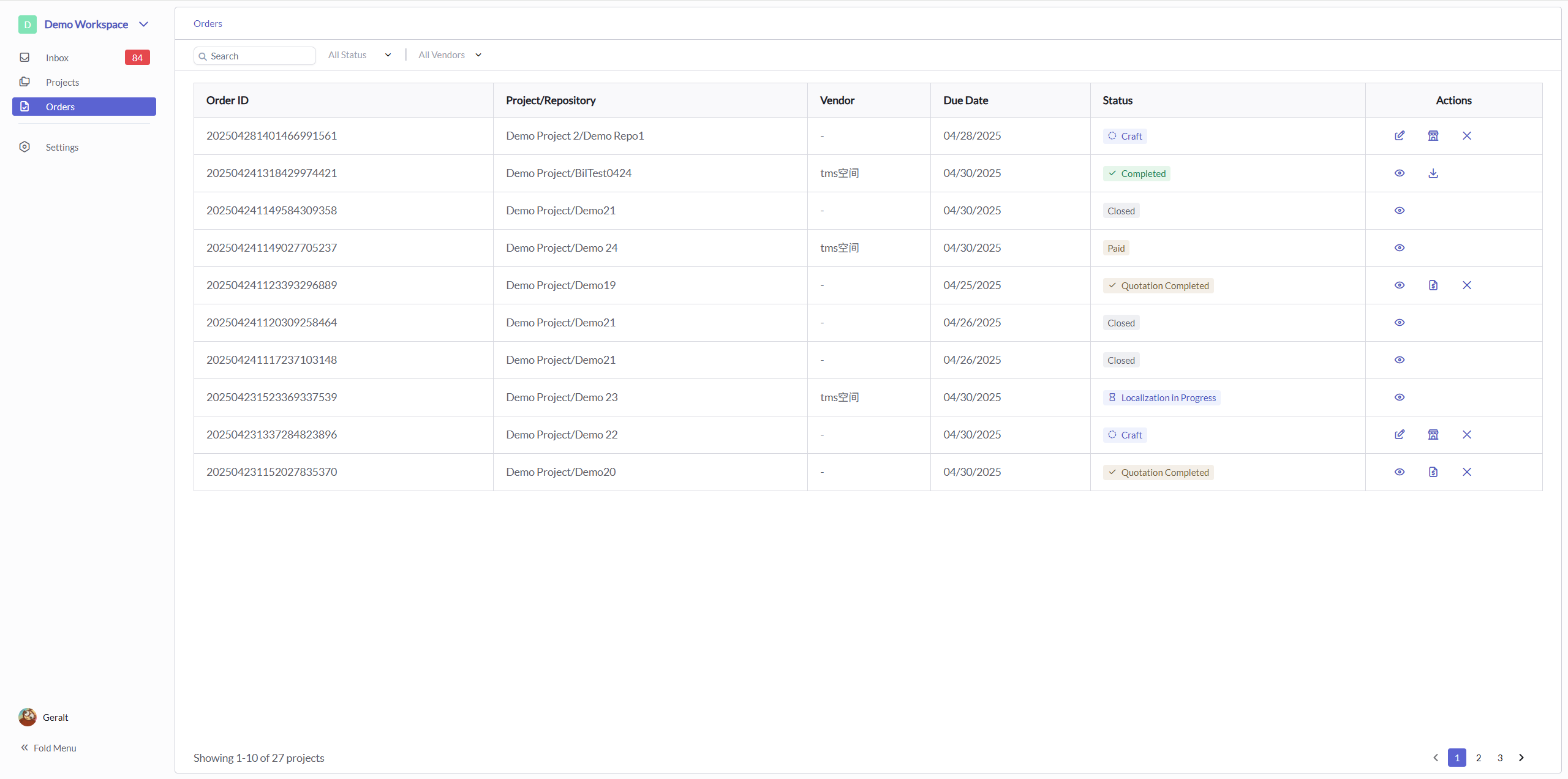
Quote Management
Receiving Quotes
- After you submit the order, you are redirected to the order page where you can see the order currently in the quoting stage
- Generating quotes takes time, especially when there are many segments or multiple TMs configured
- You will receive in-platform notifications and email alerts when quotes are ready
- Navigate to the order details to review the received quotes
Reviewing and Responding to Quotes
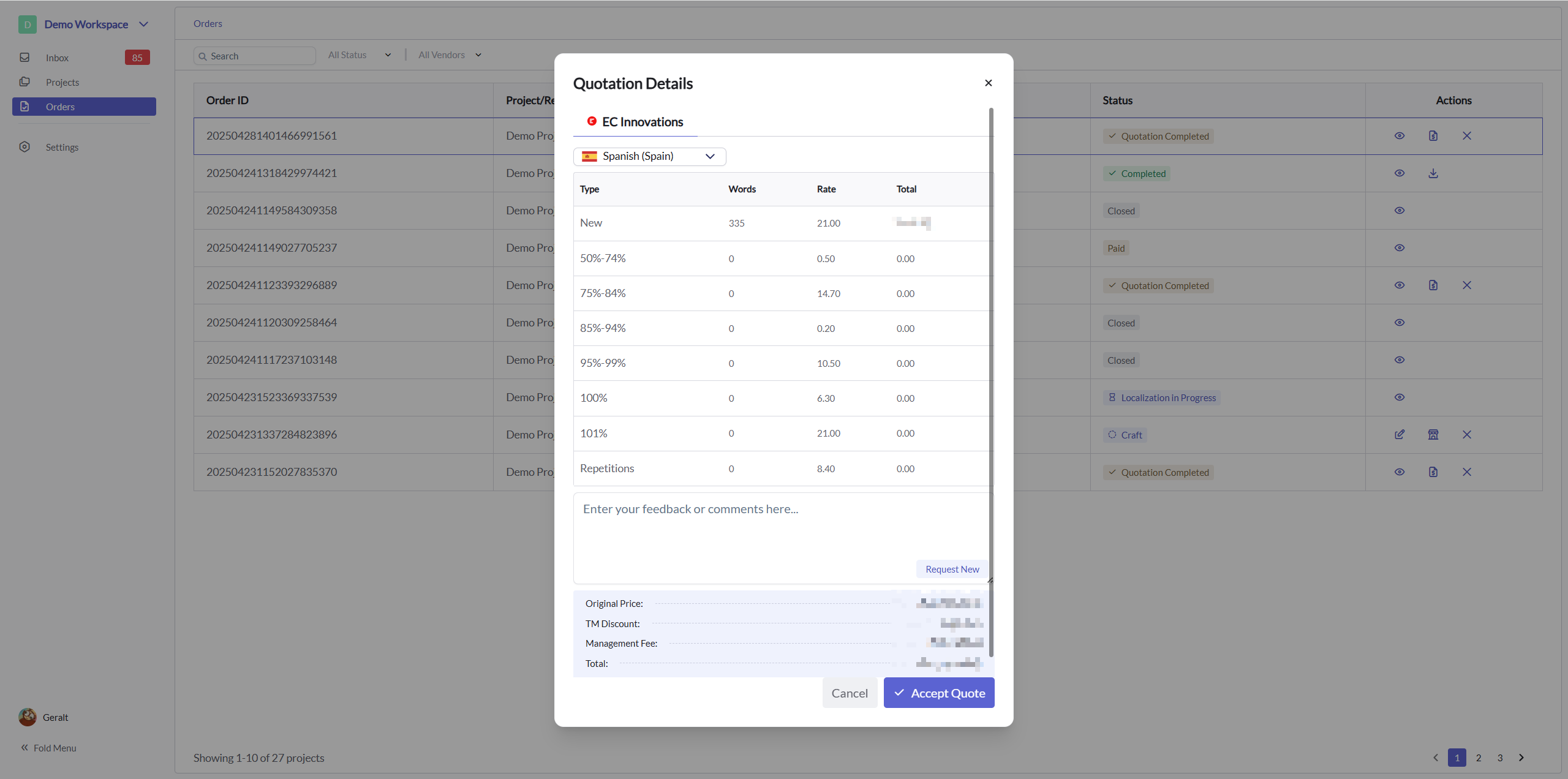
- Review the machine-generated quotes for each selected vendor
- Compare pricing structures, delivery timelines, and other terms
- You have two response options for each quote:
- Accept: If you are satisfied with the quote, click "Accept" to approve it and move the order directly to production
- Request New: If you need adjustments to the quote, click "Request New" and provide your specific requirements
Quote Negotiation
- When you request a new quote, vendor Project Managers will be notified
- The PM will review your requirements and generate a revised quote
- You can continue this negotiation process as needed until reaching satisfactory terms
- The order remains in the quote negotiation phase until you either accept a quote or close the order
Order Kickoff
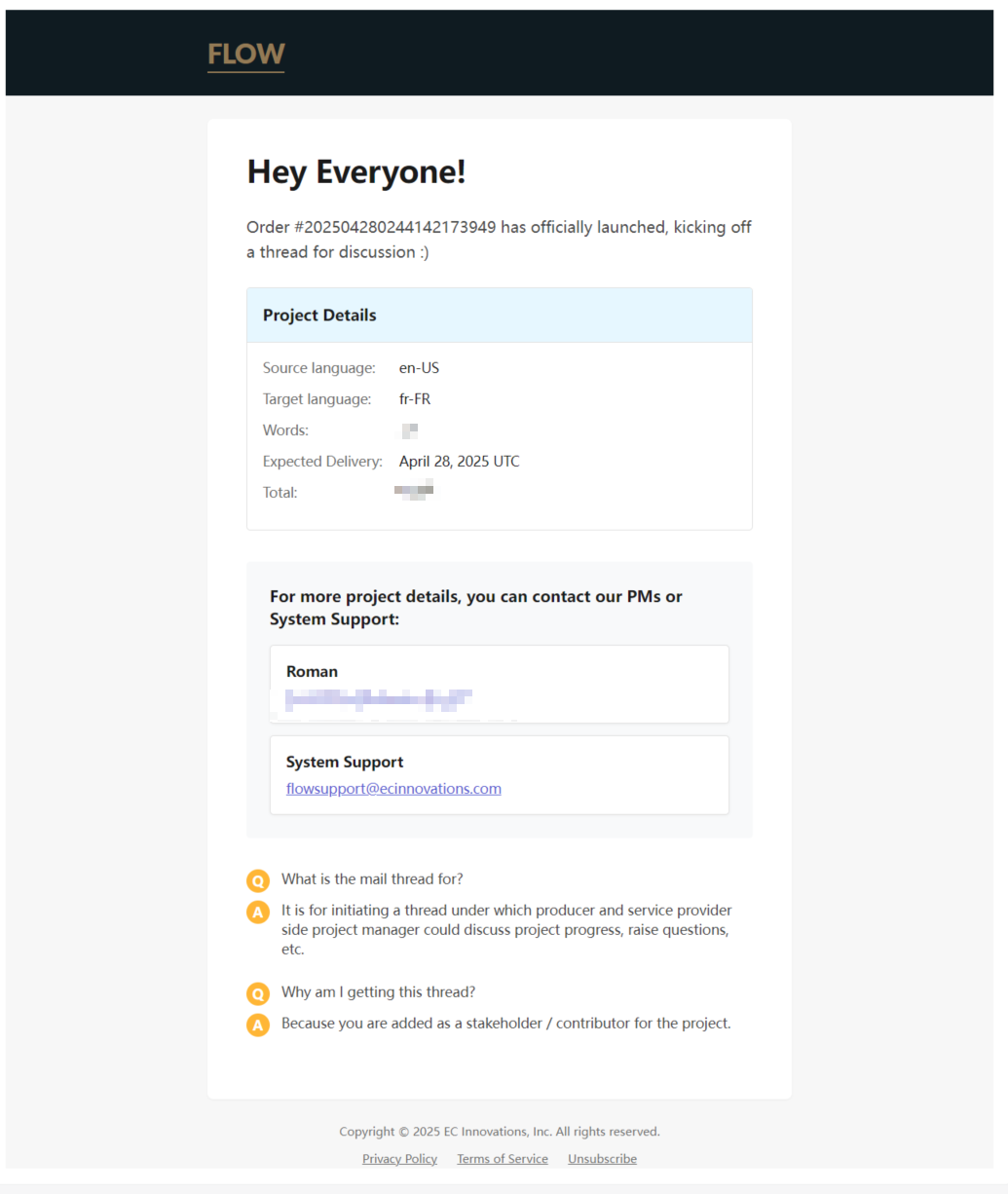
- Once you accept a quote, the order will be moved to the "Localization in Progress" status
- Your will receive a notification email with the order details
Order Acceptance
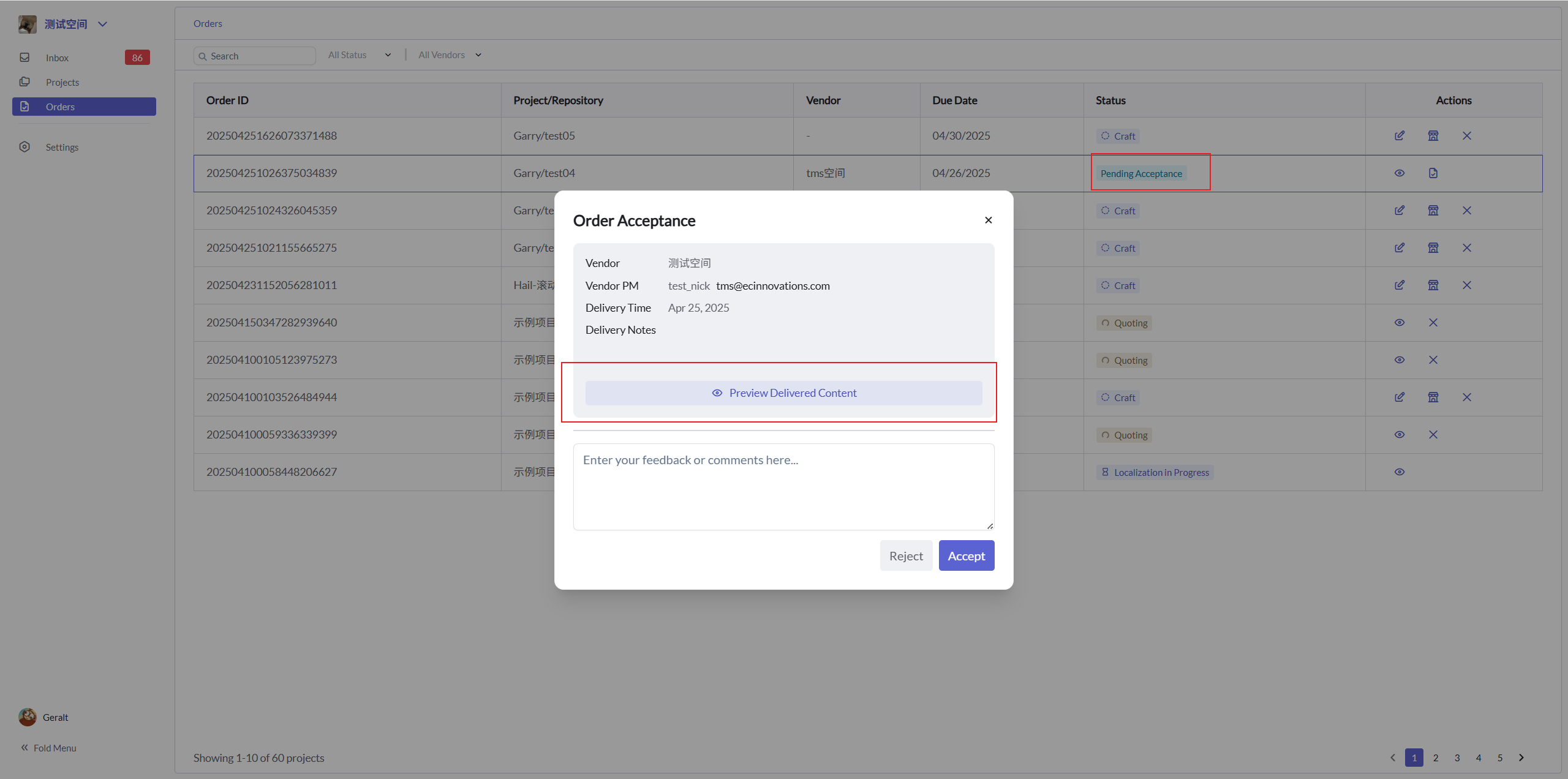
- Once the vendor has completed the localization, the order will be moved to the "Pending Acceptance" status
Reviewing Localized Content
- Click the "Preview Delivered Content" button shown in the image above
- This will redirect you to the Content Repository where you can preview the localized results
- At this stage, the localized content is not yet formally added to your content library
- You can review the quality, accuracy, and consistency of the translations
Content Approval Process
- If you find issues with the localized content, click "Reject" and provide detailed feedback
- The vendor's Project Manager will address your concerns and resubmit for approval
- You can repeat this review cycle as needed until you are satisfied with the results
- When you confirm that everything is correct, click "Accept" to formally approve
Content Integration
- Once accepted, the localized content officially becomes part of your Content Repository
- You can now synchronize this content back to your data source
Financial Processes
Invoicing and Payment
- After accepting the order, the financial process begins automatically
- You will receive an invoice for the completed services
- Review and process the payment according to the agreed terms
- Upon payment confirmation, you will receive a receipt
Order Completion
- The localization order is fully completed when all deliverables are accepted and payment is processed
- All order information and history remains accessible for future reference