Content Repository
Introduction
Content Repository serves as the central nervous system of your localization workflow. It's where you integrate with upstream data sources, manage and maintain your localization content, and orchestrate the entire localization lifecycle.
Key Functions
Integration with Upstream Data Sources
The Content Repository acts as a bridge between your original content and the localization process:
- Connect to multiple content sources (Local Files, Online Sheets, code repositories and etc.)
- Import content through game engine plugins (Unreal Engine, Unity)
Content Management
Manage your localization content efficiently within the repository:
- Organize content by projects, products, or franchises
Content Maintenance
The repository enables ongoing content adjustments and improvements:
- Edit source content directly when necessary
- Re-order content items
- Tag content for special handling or filtering
- Mark content by status or color
Localization Order Management
Based on repository content, you can:
- Create localization orders with precise scope definitions
- Set Guidelines for vendors
- Set your own language assets
- Track progress of ongoing localization efforts
String Synchronization
After localization, the repository facilitates:
- Synchronization of completed translations back to source systems
- Version control and rollback to previous versions
Create Repository
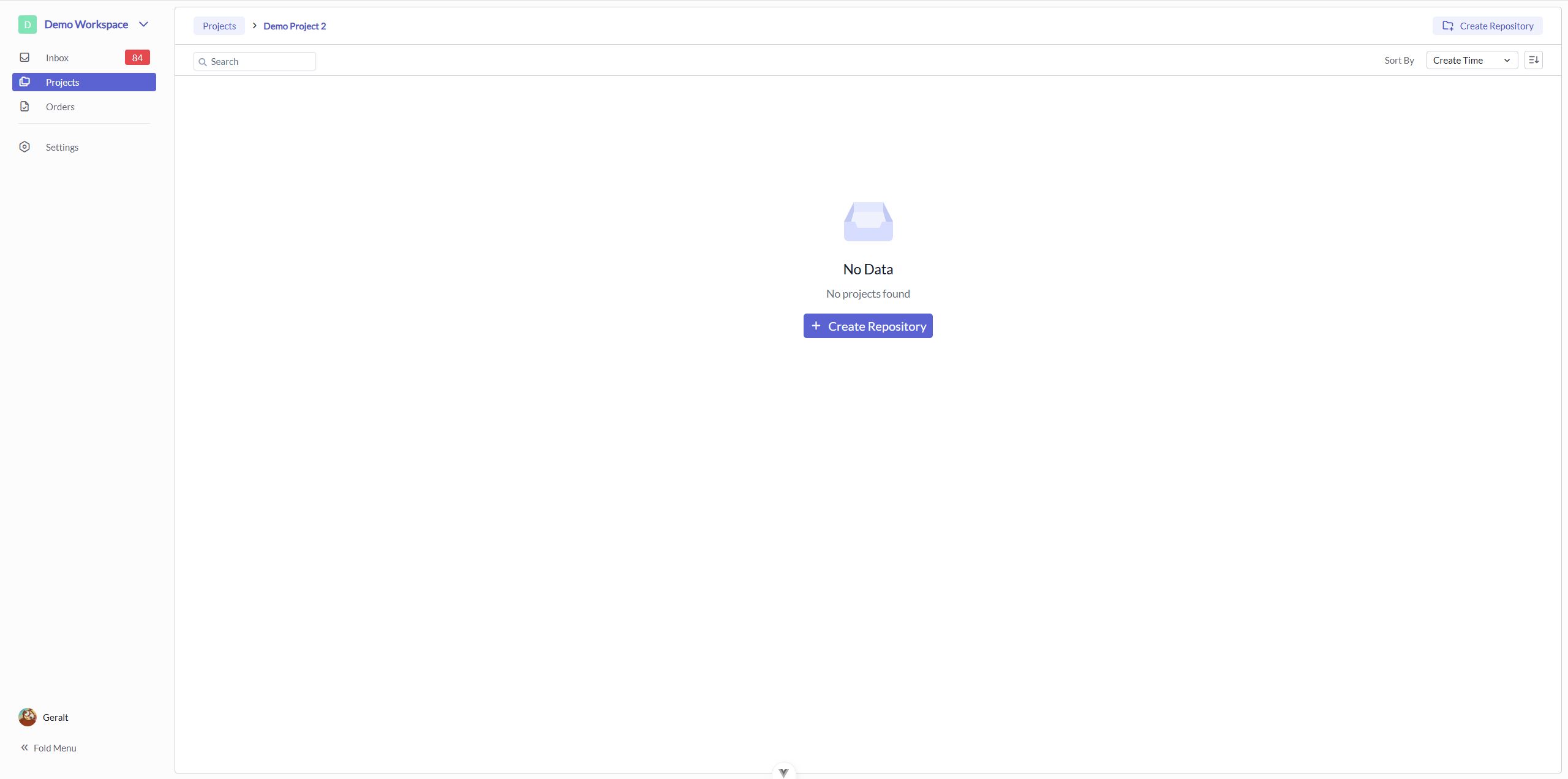
Enter a project and click the "Create Repository" button.
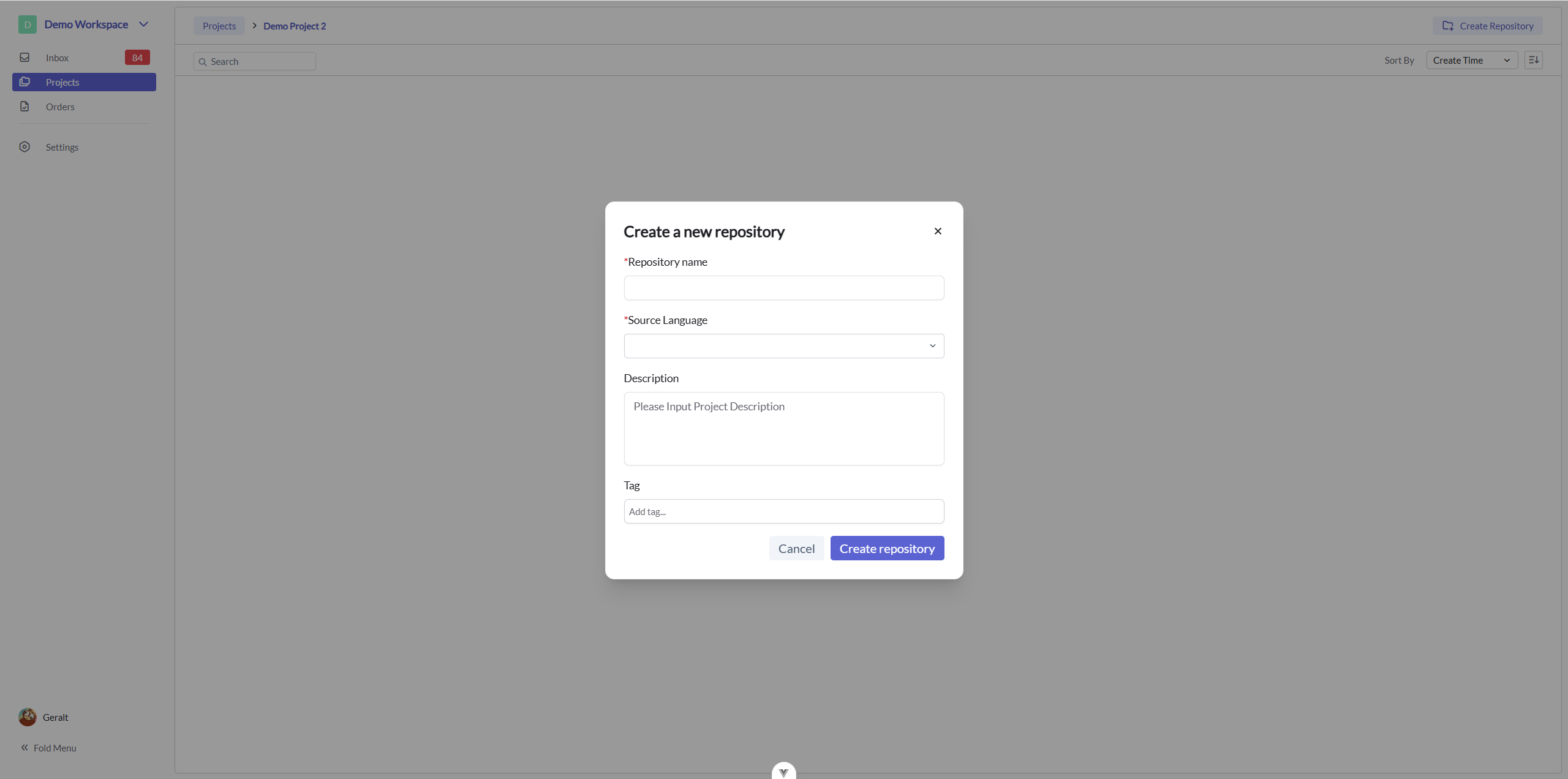
Fill in the repository name and source language is necessary.
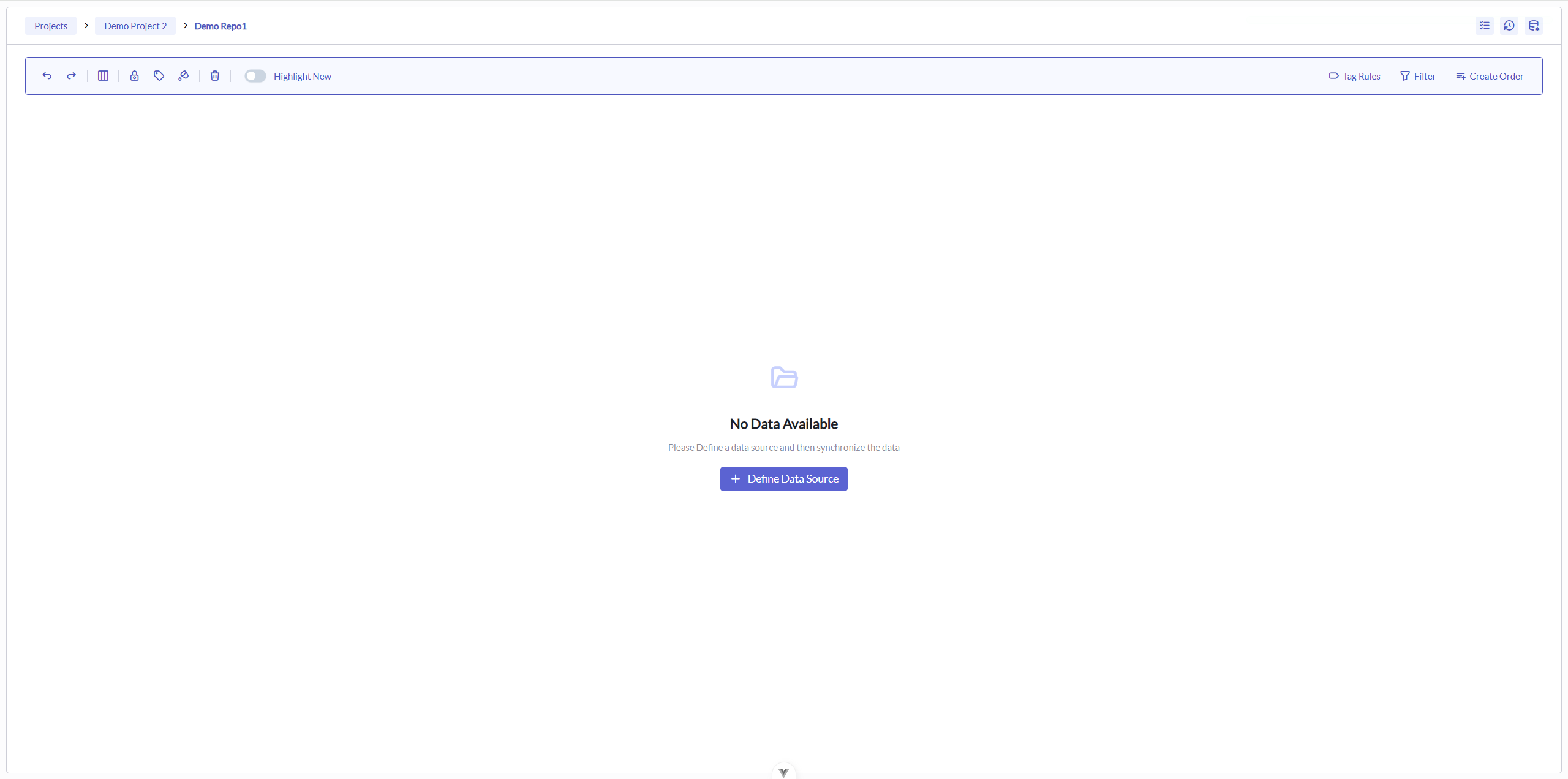
When the repository is created, you can see an empty repository.
Import Content
Before importing content, you need to define a Data Source.
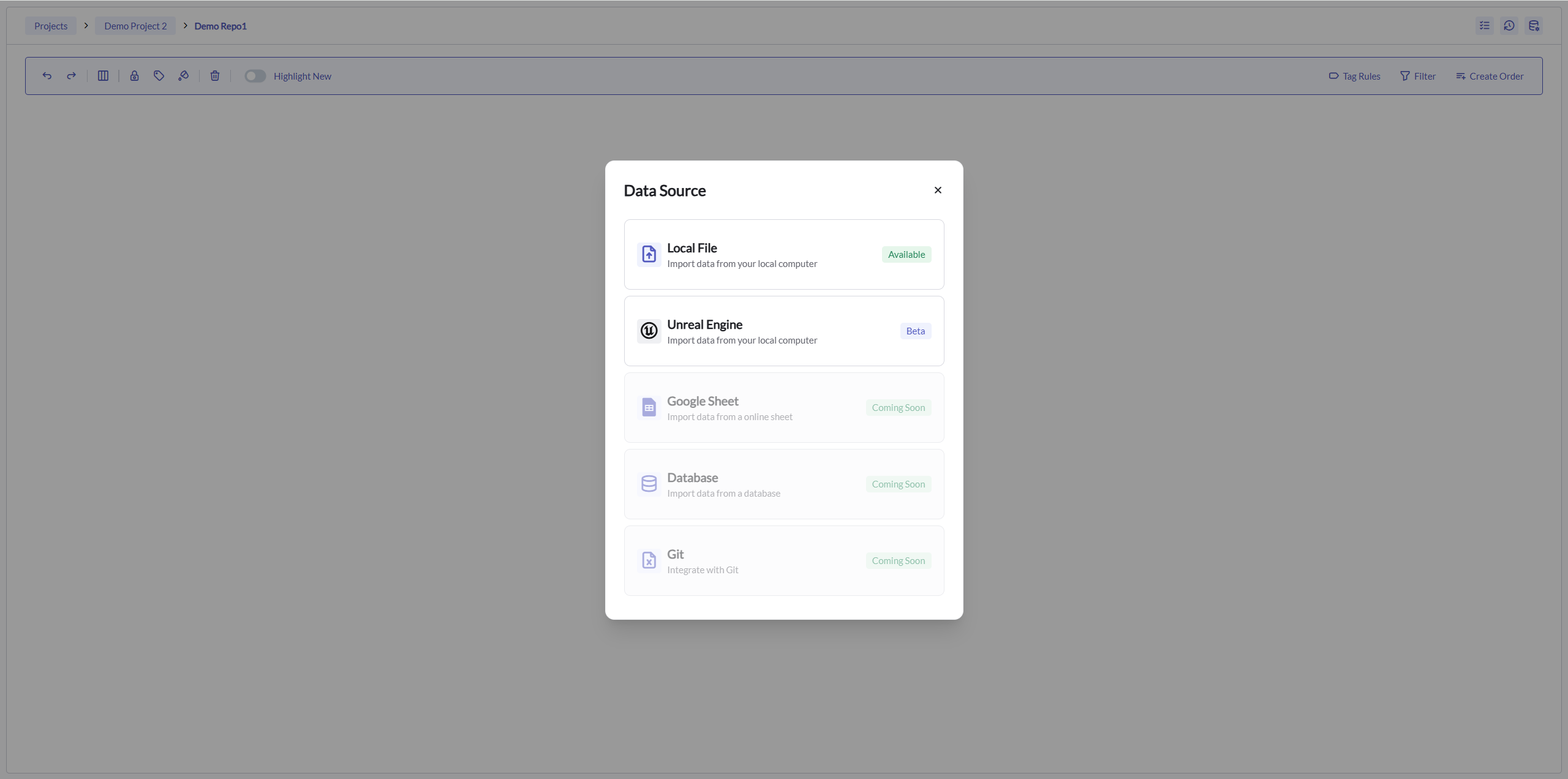
Uploading your files to the repository is easy.
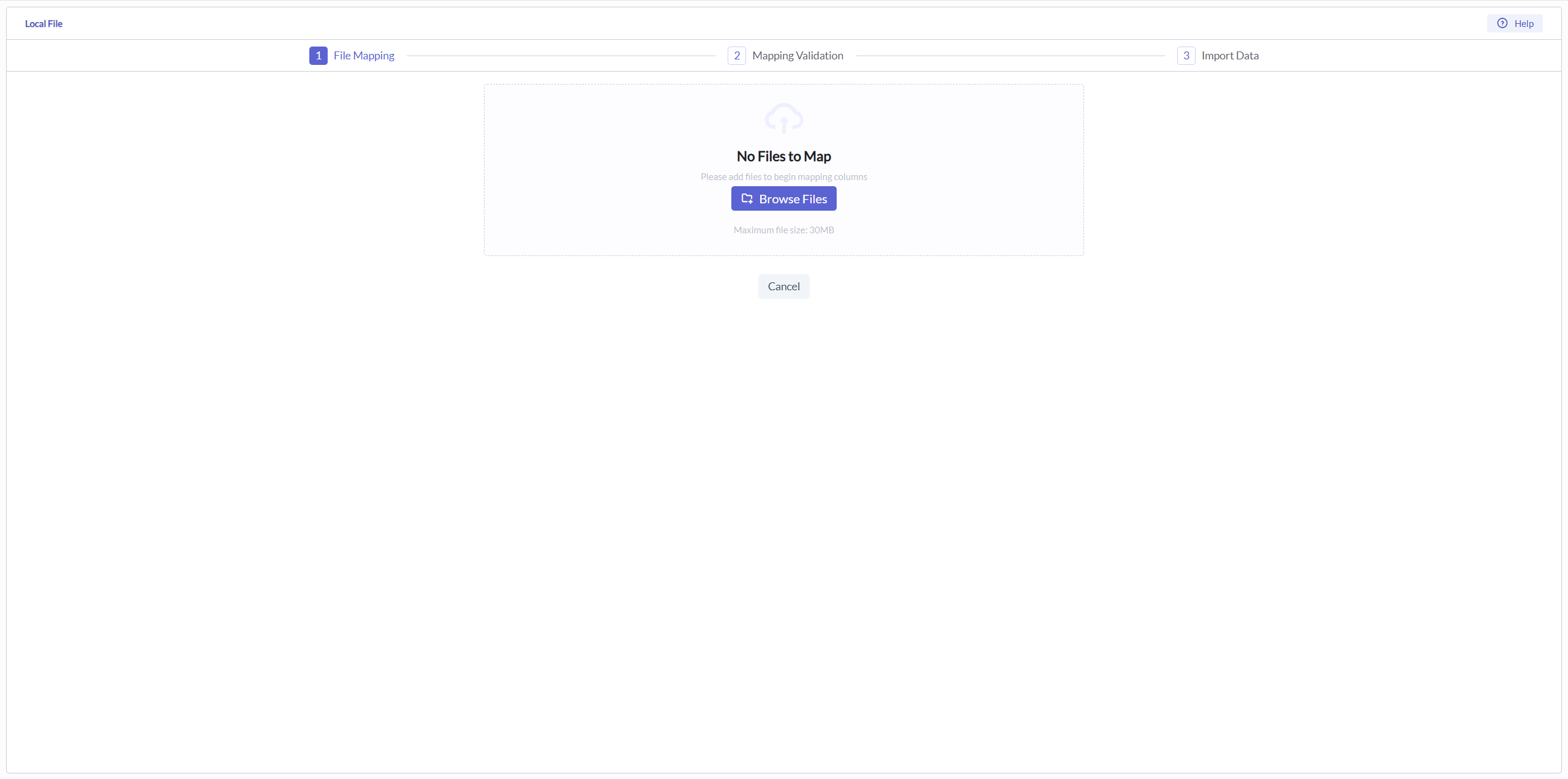
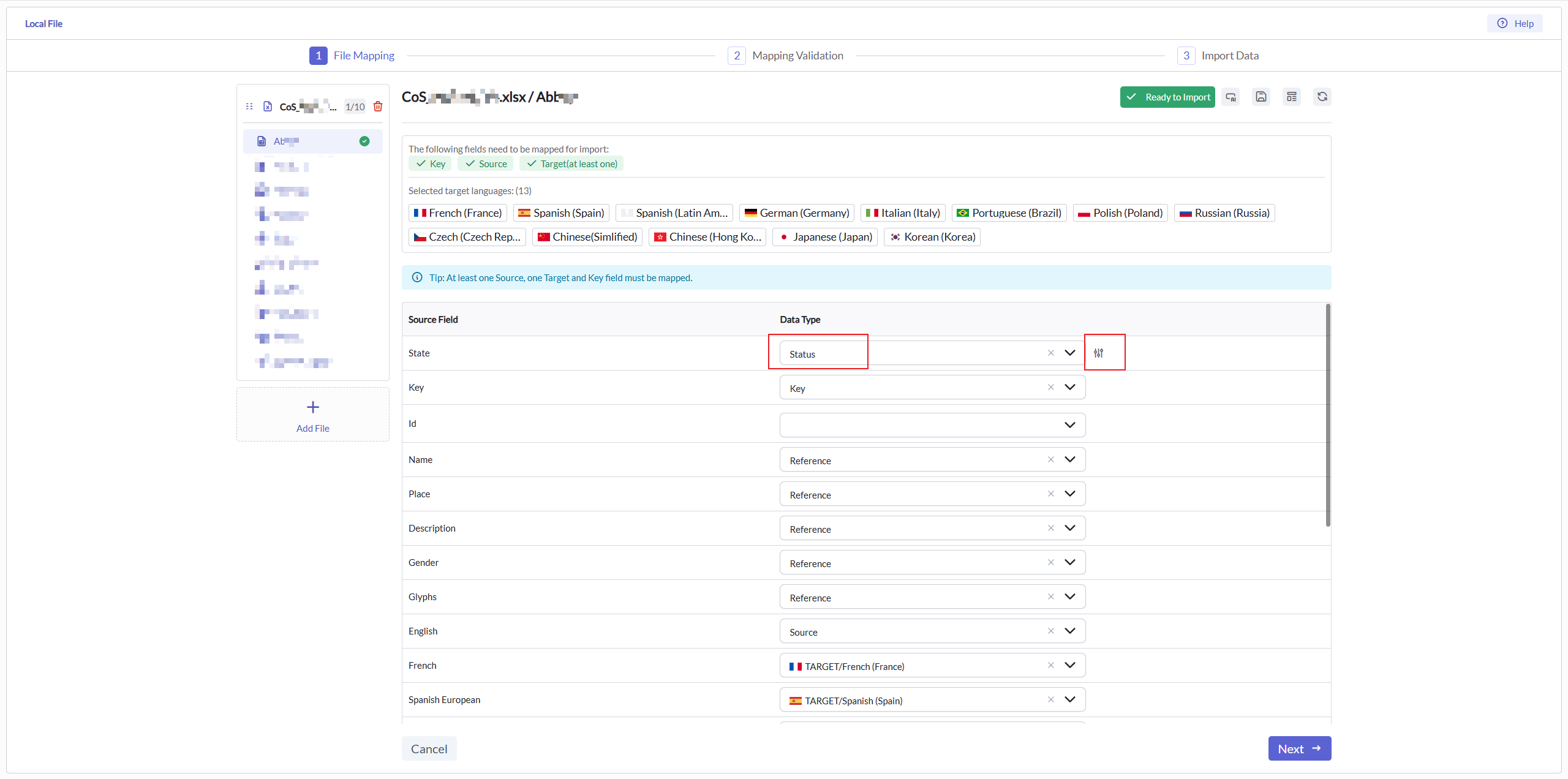
After uploading, you need config a mapping between your content and the repository.
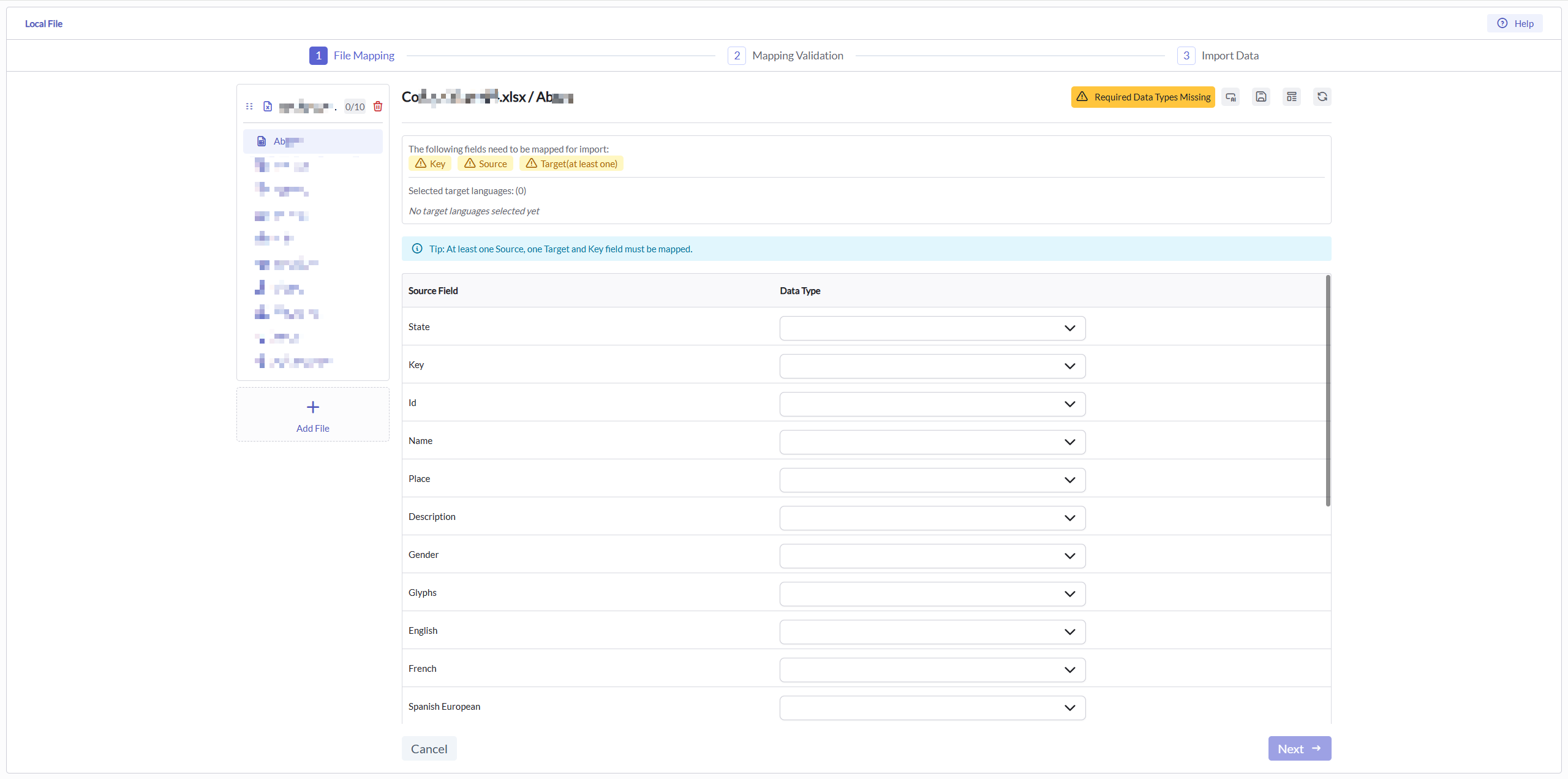
Mapping Tips
You can upload multiple files, even if they have different structures. Each file can contain any number of sheets with varying structures. You only need to map the sheets you want to import into the system.
In the mapping, the following fields are mandatory:
- Key: The unique identifier for each string
- Source: The original language content
- Target: At least one target language
After completing these mappings, the system will prompt you to proceed to the next step of the import process.
Mapping Tools
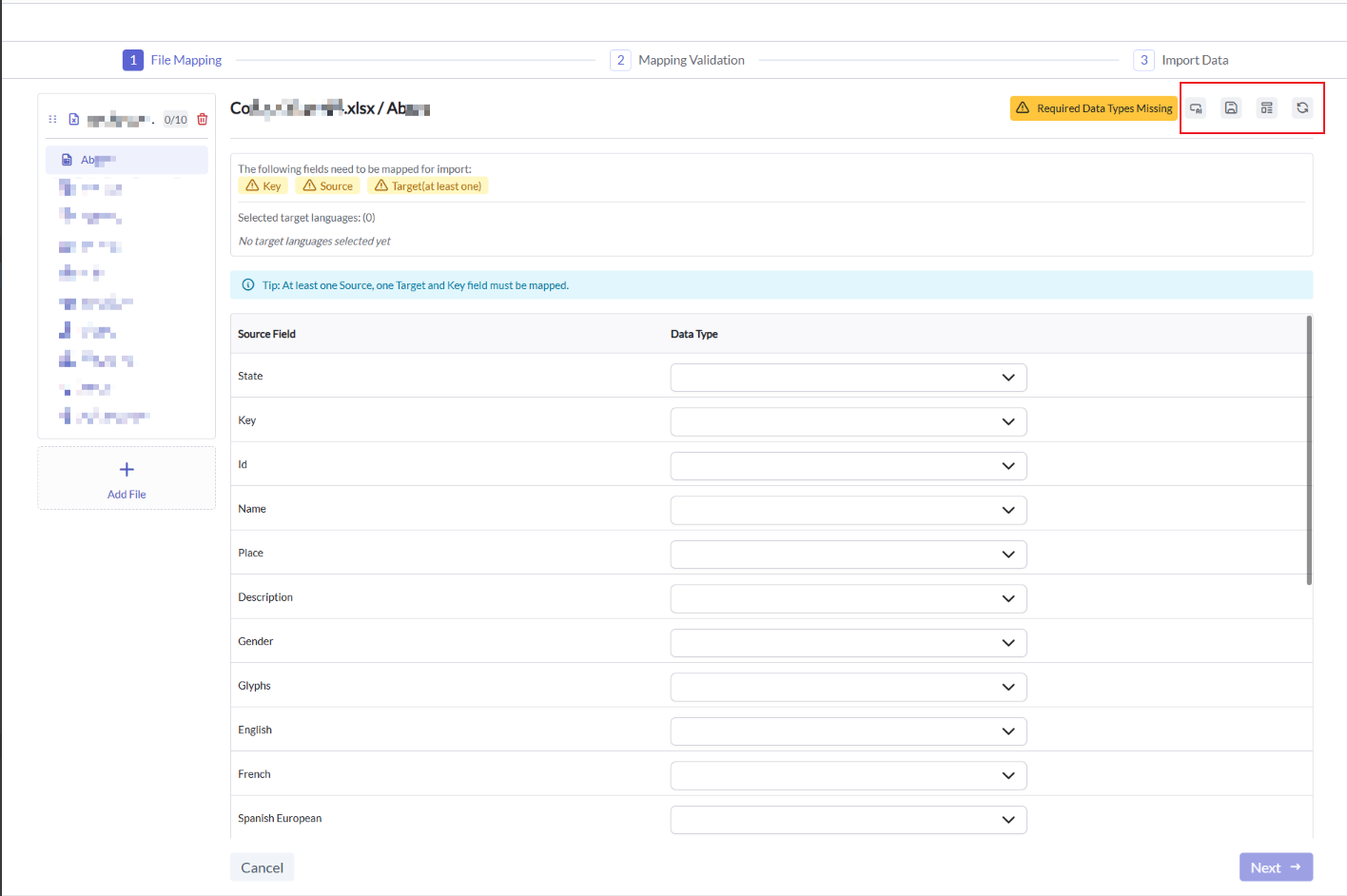
The mapping interface provides several helpful tools in the top-right corner to streamline your workflow:
AI Recognition: Automatically identifies the meaning of columns based on header names. The AI analyzes your column headers and suggests appropriate mappings for Key, Source, and Target fields.
Save as Template: Saves your current mapping configuration as a template for future use. This is particularly useful when you frequently work with files that have consistent structures.
Apply Template: Applies a previously saved mapping template to your current sheet.
Reset Mapping: Clears all current mapping selections.
We will continue to add more features to simplify your mapping process.
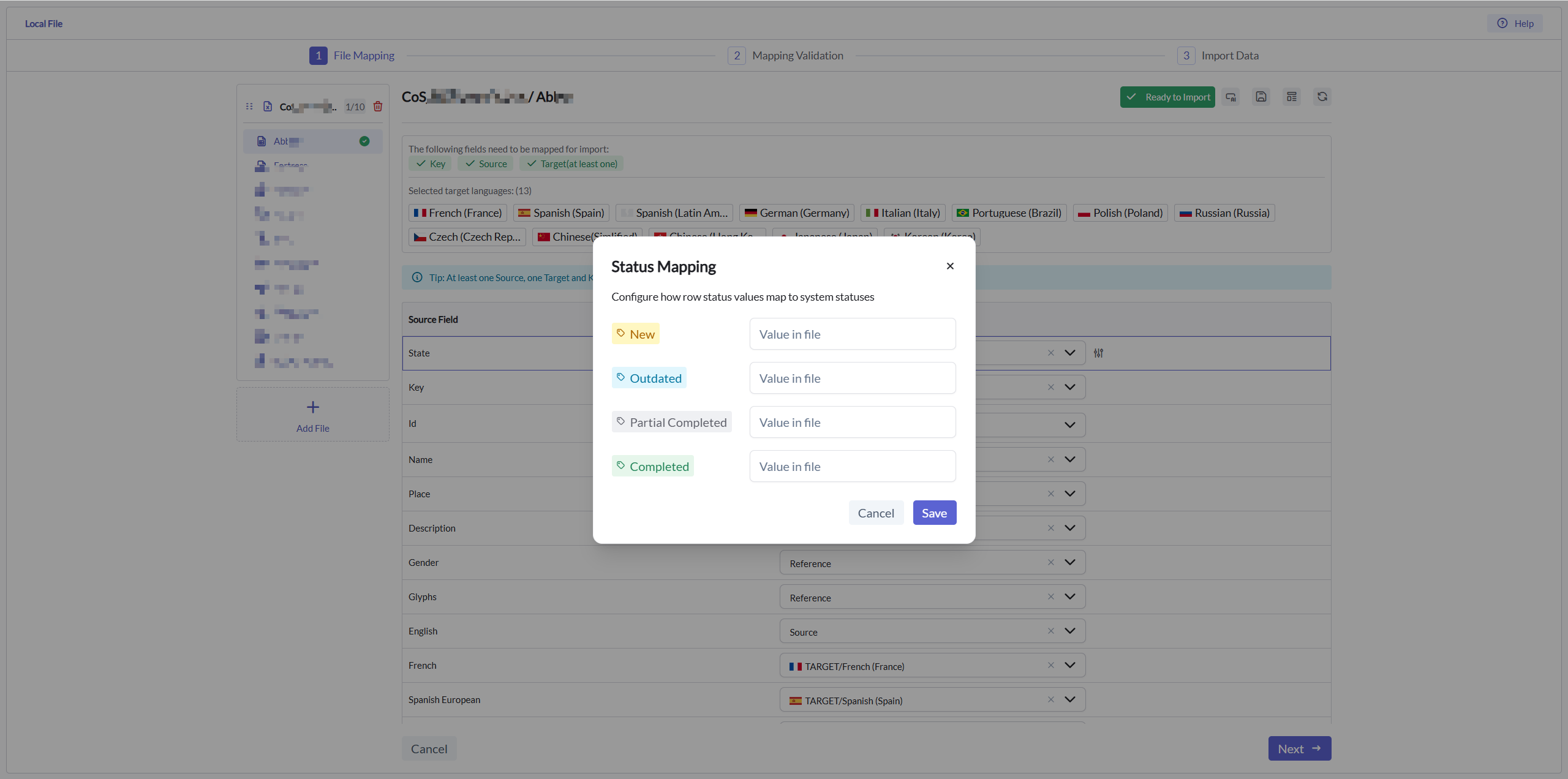
Status Mapping
In Repository, we define 4 statuses for a string:
- New: The string is new and has not been translated.
- Completed: The string all target languages are translated.
- Partial Completed: The string has been translated in some target languages.
- Outdated: The string is outdated and need to be updated.
If your file has a status column, you can use it to map the status of the string, fill your status name to correspond with the system status.
Importing
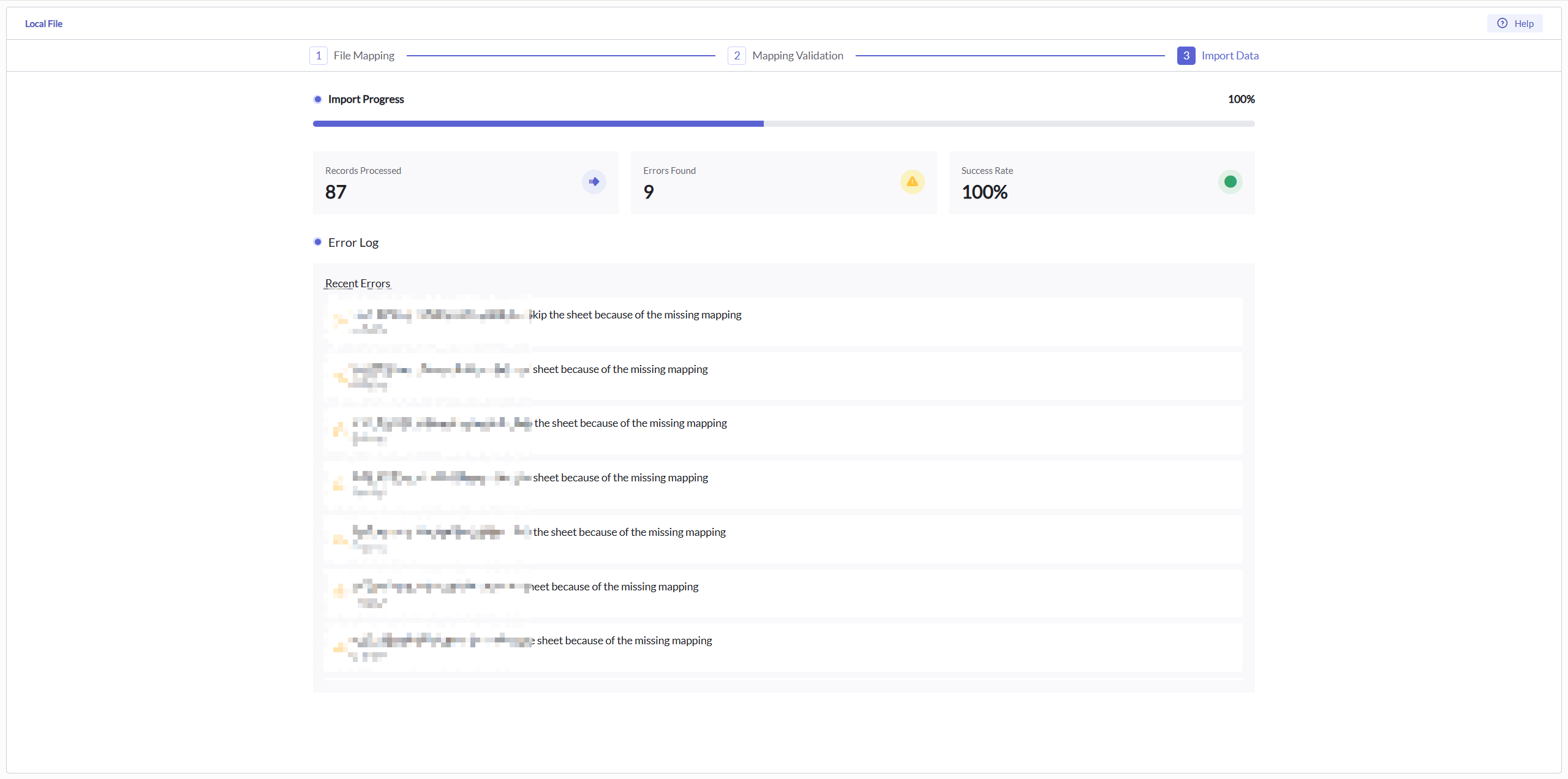
After mapping, you can proceed to the importing process.