Glossary
Glossary (also known as Termbase or TB) is a centralized repository of terminology used in localization projects. It ensures consistent translation of key terms across all content.
Overview
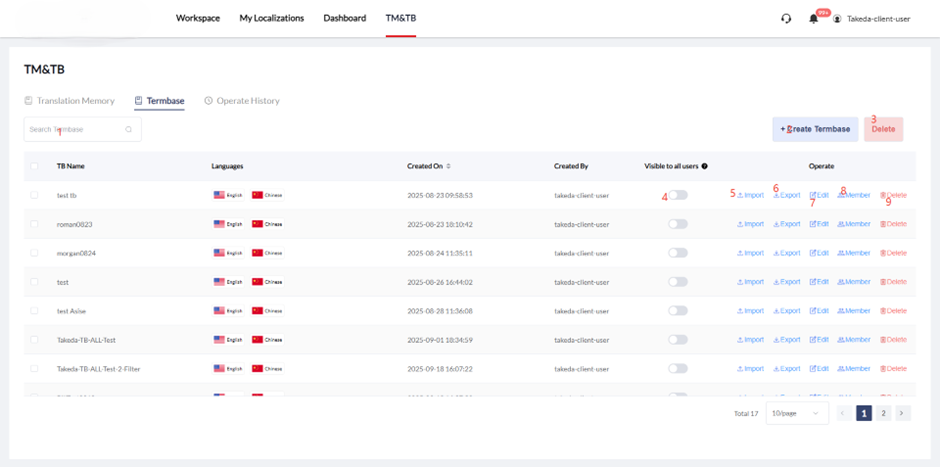
The TB page allows you to manage TB libraries, including creating, deleting, importing, exporting, and editing TB libraries, as well as managing TB members to control permissions.
Features
Managing TB Libraries
- Filter TB List: Filter the TB list by "TB Name" keyword
Creating a Termbase
To create a new TB:
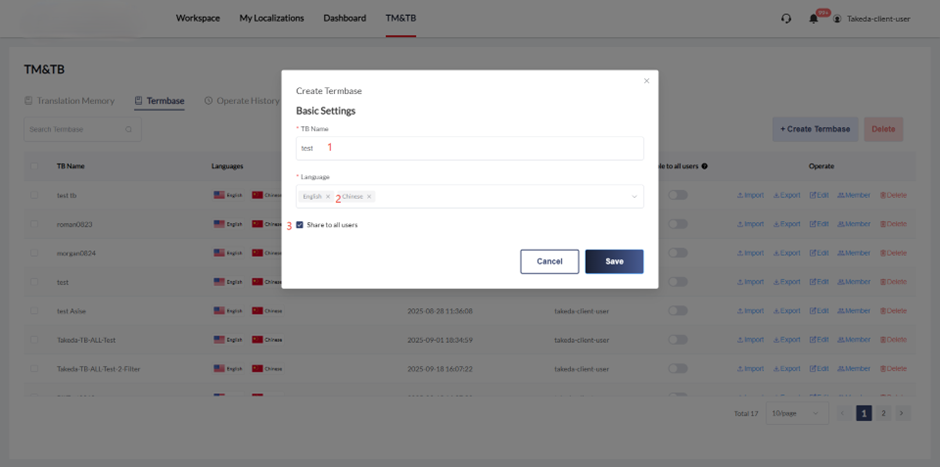
- Click "Create Termbase"
- Enter the TB library name
- Select TB library languages (multiple selections allowed)
- Currently we only need to select "English" and "Chinese"
- Configure sharing:
- If "Share to all users" is selected, the TB will be shared with everyone
- If not selected, TB usage will be controlled by normal permissions
- Click "Start" to save TB
Importing TB Data
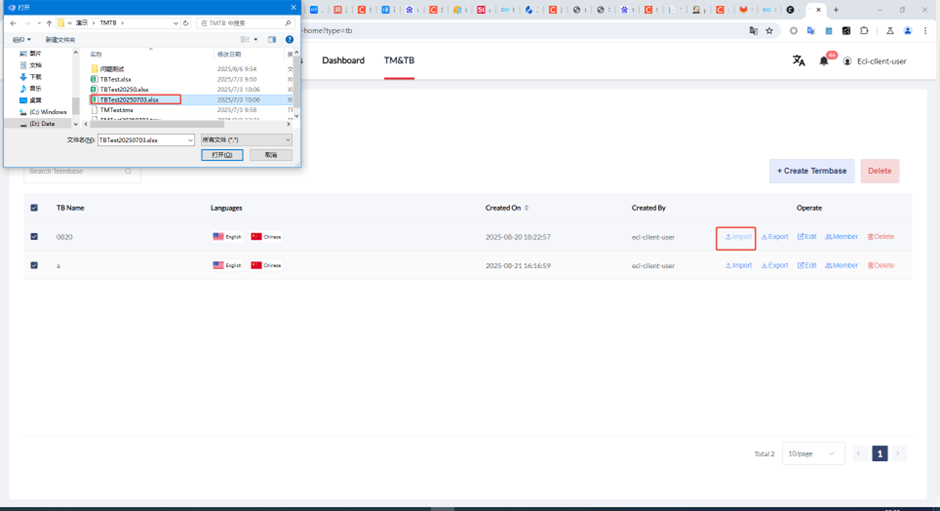
- Click "import" to import TB data
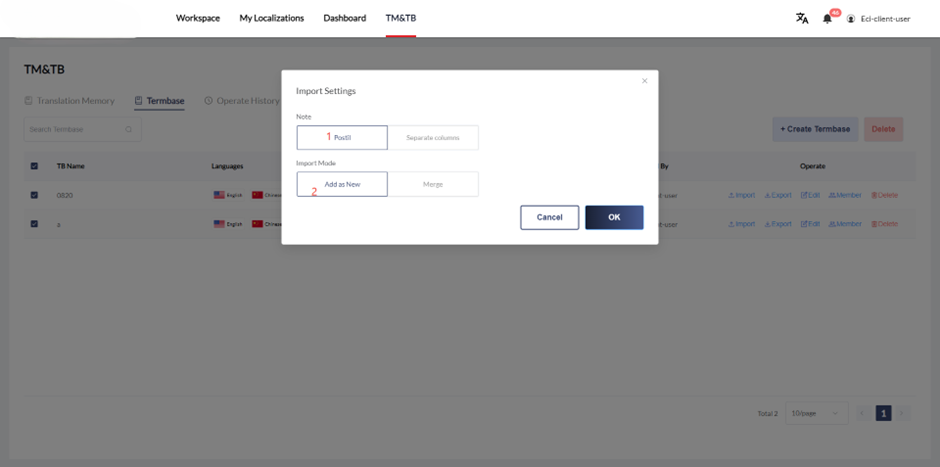
- After confirming the file, a TB import configuration page will pop up
- Click "OK" with default options to import TB data
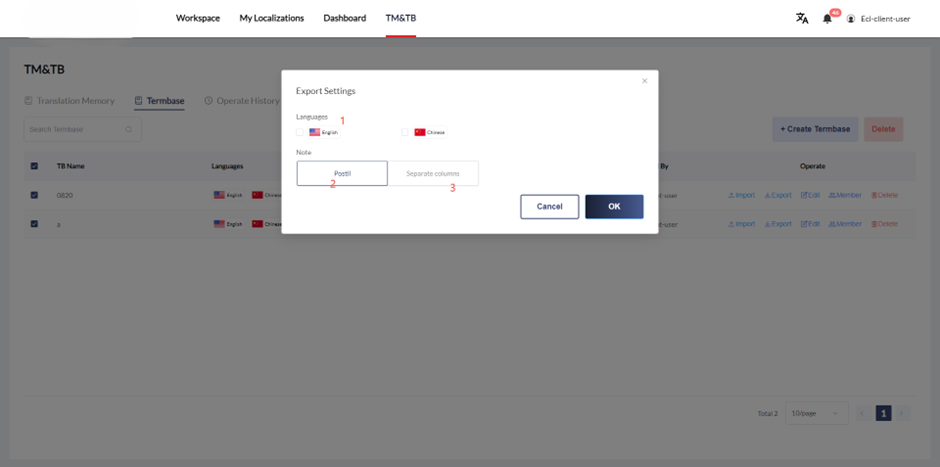
Exporting TB Data
Click "Export" to export TB data files in .xlsx format:
- Select both Chinese and English for languages
- Note default options
- Click "OK" to export
Editing TB Data
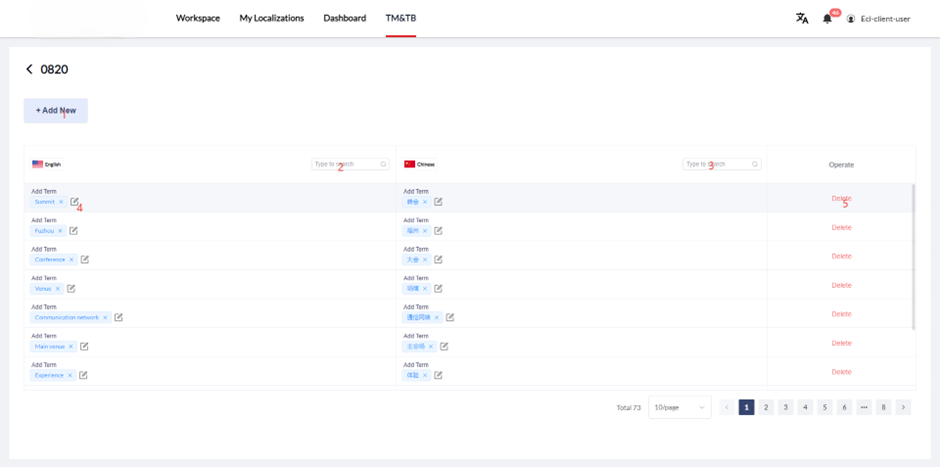
- Click "Edit" to edit TB data
- Click "Add New" to add a new TB data entry
- Filter TB data by:
- Source language
- Target language
- Click the edit icon to modify term data
- Click "Delete" to delete term data
Batch Operations
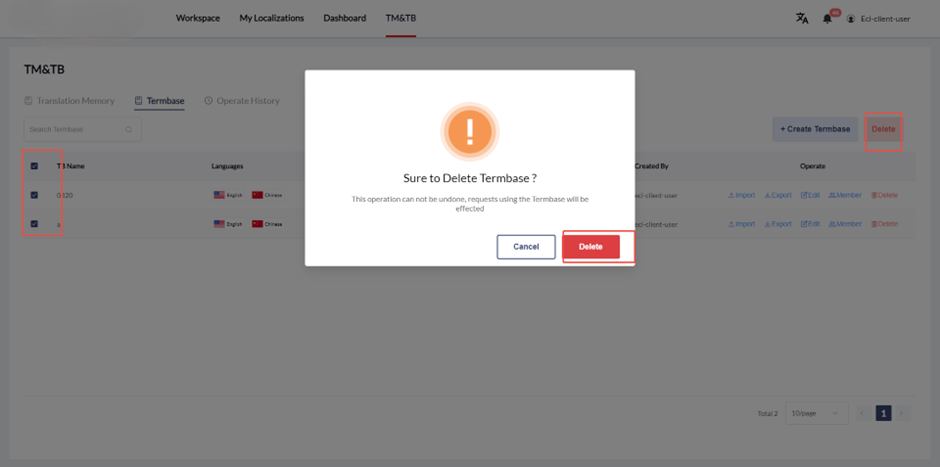
- Check the checkboxes on the left
- Click "Delete" next to the "Create Termbase" button to batch delete selected TBs
Sharing Settings
"Visible to all users" toggle:
- If enabled: The TB will be shared with everyone
- If disabled: TB usage will be controlled by normal permissions
Managing TB Members
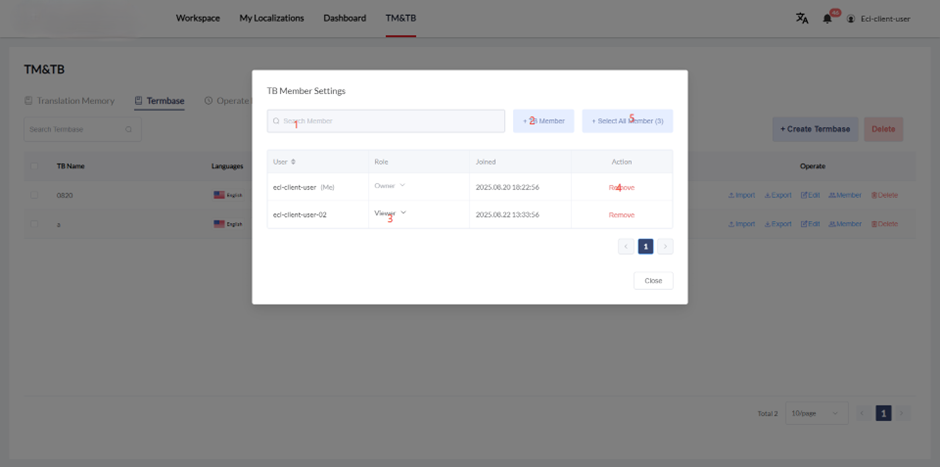
- Click "Member" to manage the members of the corresponding TB
- Enter username keyword to filter the list
- Configure member roles (Admin, Editor, Viewer)
- Click "Remove" to remove the member from the project
- Click "Select All Member" to invite all members in the organization to join the TB library (default role: Viewer)
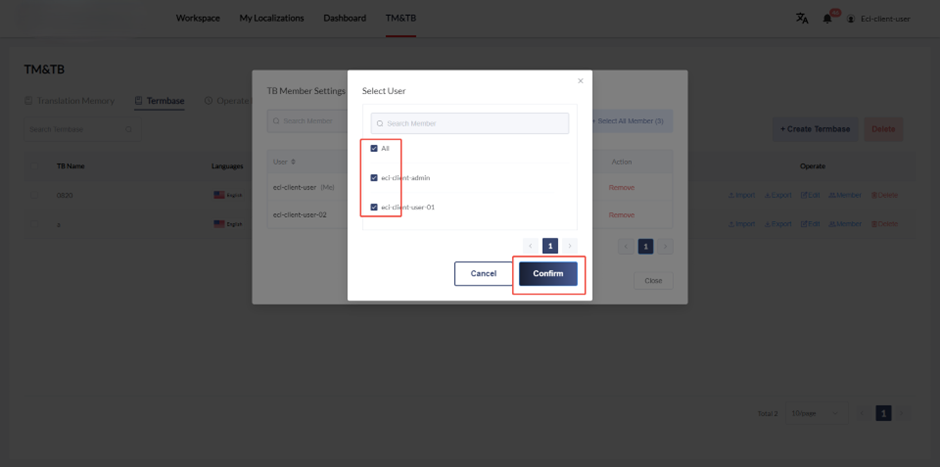
Adding Members
- Click "TB Member" to open the add member interface
- Select the members you want to add to this TB (multiple selections allowed)
- Click "Confirm" to submit (added users default to "Viewer")
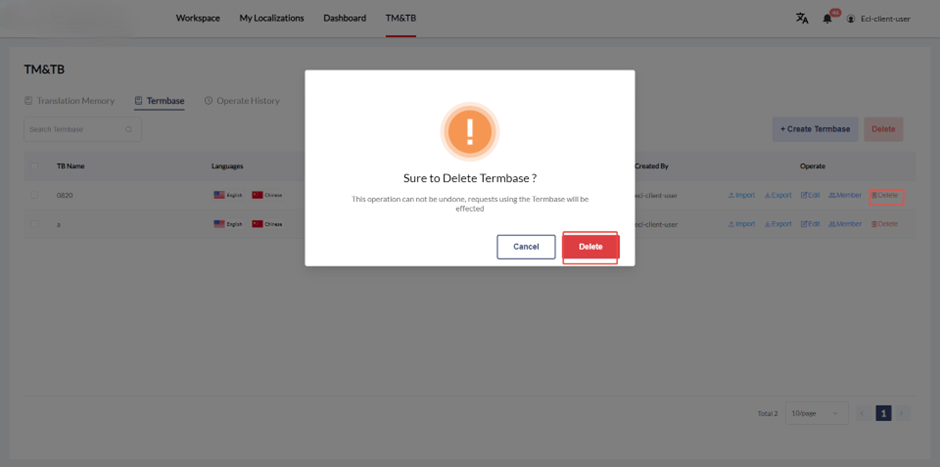
Deleting a TB
Click "Delete" in the TB row information to delete the corresponding TB.
TB Roles and Permissions
| Role | Delete TB Library | Edit and Import TB Library | Export TB Library | Add/Delete/Modify/Query Members and Roles | Apply TB in Projects |
|---|---|---|---|---|---|
| Owner | √ | √ | √ | √ | √ |
| Admin | × | √ | √ | √ | √ |
| Editor | × | √ | √ | × | √ |
| Viewer | × | × | × | × | √ |
Note: Only Owner and Admin can adjust roles.
- Owner can adjust all users to roles other than Owner
- Admin can adjust all roles except Owner and Admin