Translation Memory
Translation Memory (TM) is a database that stores previously translated content for reuse in future translations. This helps maintain consistency and improve translation efficiency.
Overview
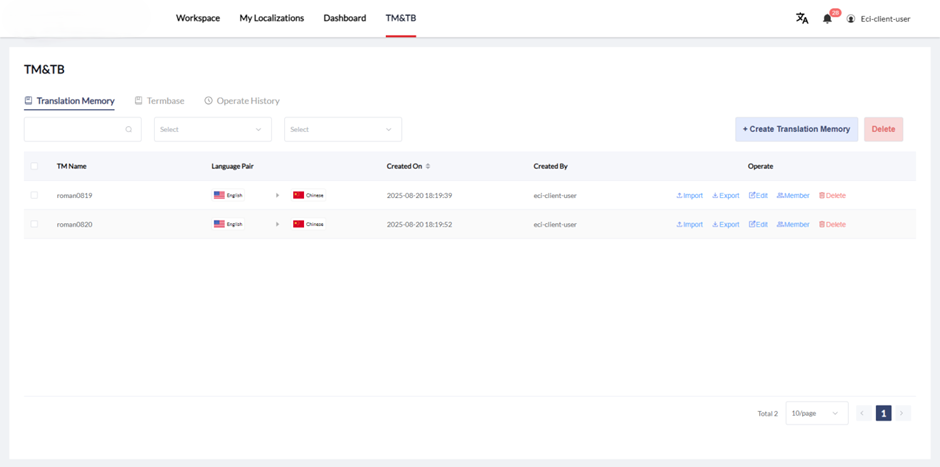
The TM page allows you to manage TM libraries, including creating, deleting, importing, exporting, and editing TM libraries, as well as managing TM members to control permissions.
Features
Managing TM Libraries
- Filter TM List: Filter the TM list by:
- TM Name keyword
- Source language (first column in Language Pair)
- Target language (second column in Language Pair)
Creating a Translation Memory
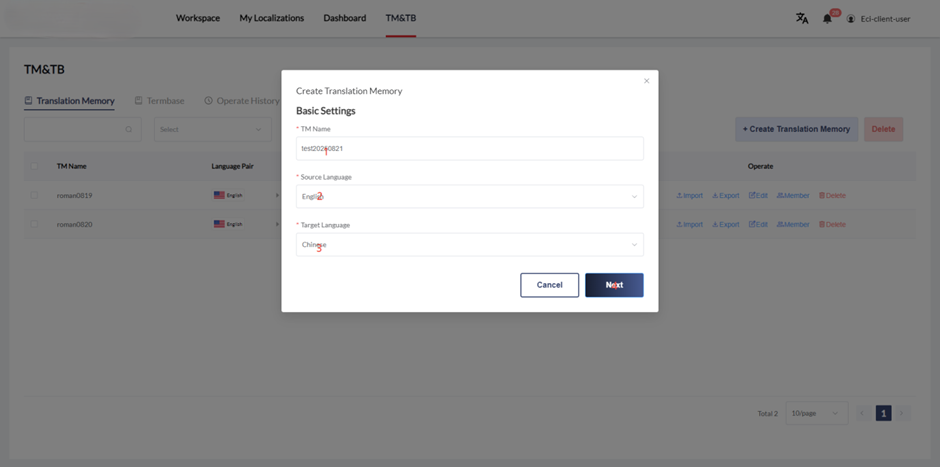
To create a new TM:
- Click "Create Translation Memory"
- Enter the TM name
- Select source language
- Select target language
- Click "Next" to enter the TM configuration page
- Use default settings and click "Save" to save successfully
Importing TM Data
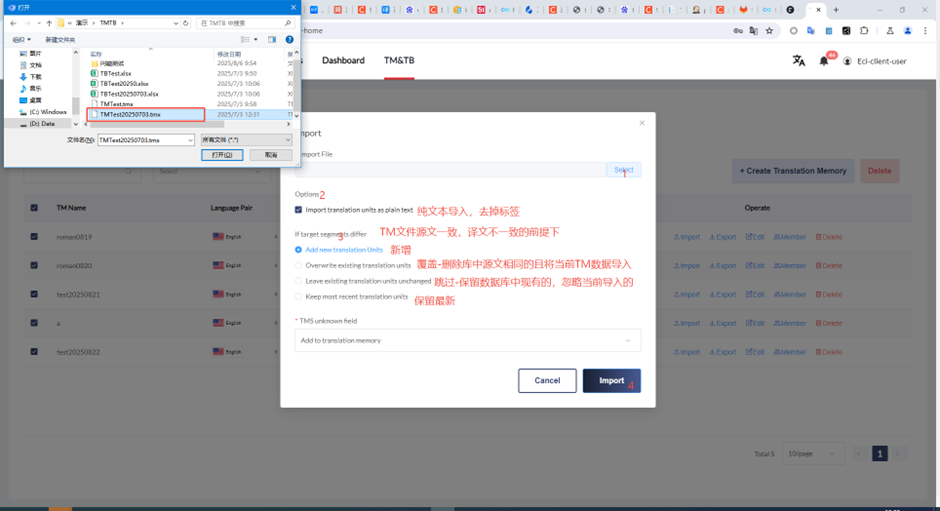
- Click "import" to import TM data
- Click "Select" to choose the .tmx format TM data file to upload
- Configure options (defaults to selecting "Import translation units as plain text" and "Export invalid translation units")
- Set "If target segment differ" to "Add new translation Units" (default)
- Click "Save" to save TM data
Exporting TM Data
Click "Export" to export a compressed package of TM data files in .tmx format.
Editing TM Data
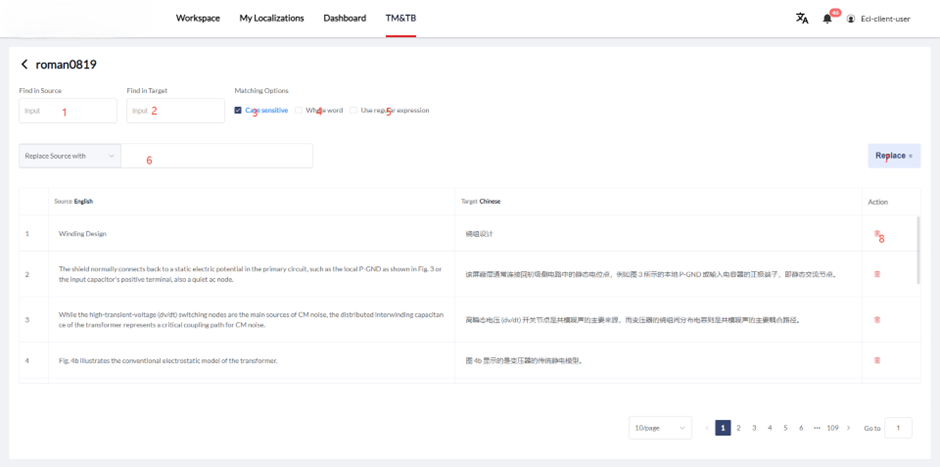
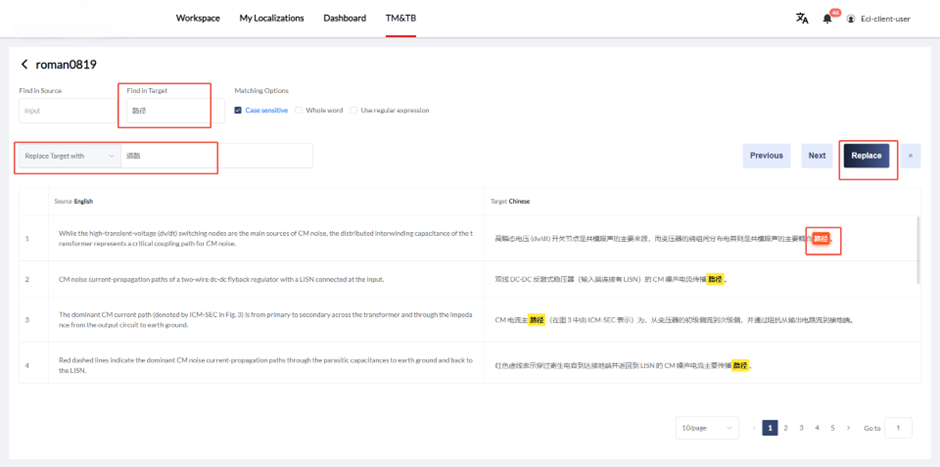
- Click "Edit" to edit TM data
- Filter TM data by:
- Source language keyword
- Target language keyword
- Configure search options:
- Select "Case sensitive" for case-sensitive search
- Select "Whole word" for whole word matching search
- Select "Use regular expression" for regular expression search support
- To replace data:
- Enter the word to be replaced and the replacement word
- Click "Replace" to replace the input result with the search result
- Click the "trash can" icon to remove TM data from the library
Batch Operations
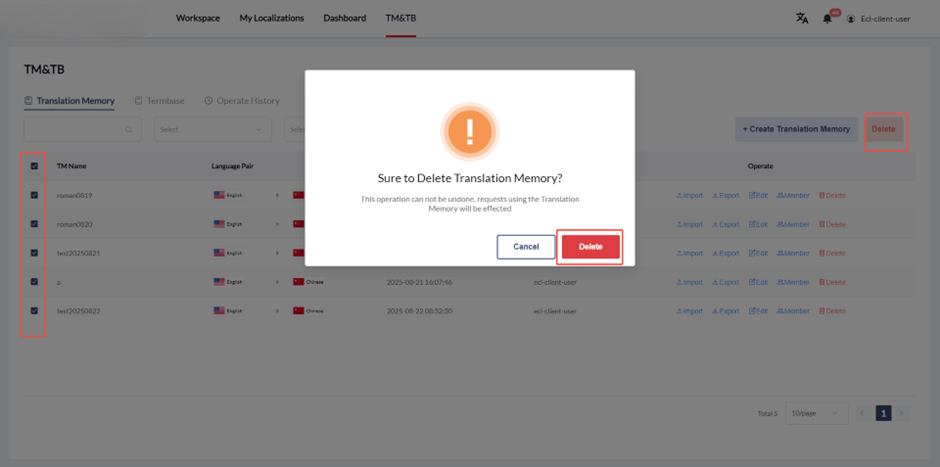
- Check the checkboxes on the left
- Click "Delete" next to the "Create Translation Memory" button to batch delete selected TMs
Sharing Settings
"Visible to all users" toggle:
- If enabled: The TM will be shared with everyone
- If disabled: TM usage will be controlled by normal permissions
Managing TM Members
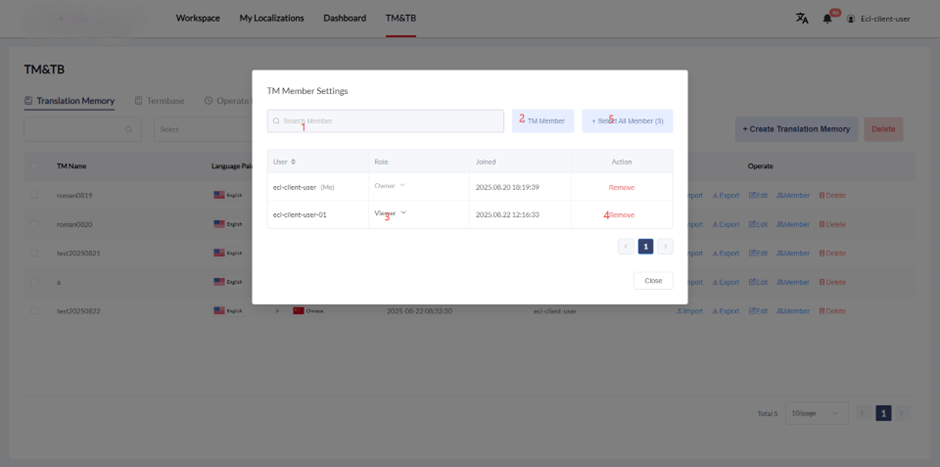
- Click "Member" to manage the members of the corresponding TM
- Enter username keyword to filter the list
- Configure member roles (Admin, Editor, Viewer)
- Click "Remove" to remove the member from the project
- Click "Select All Member" to invite all members in the organization to join the TM library (default role: Viewer)
Adding Members
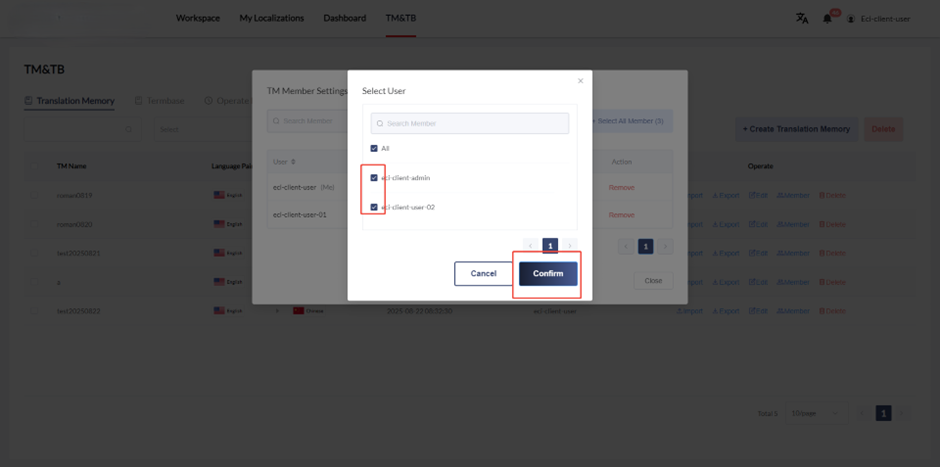
- Click "TM Member" to open the add member interface
- Select the members you want to add to this TM (multiple selections allowed)
- Click "Confirm" to submit (added users default to "Viewer")
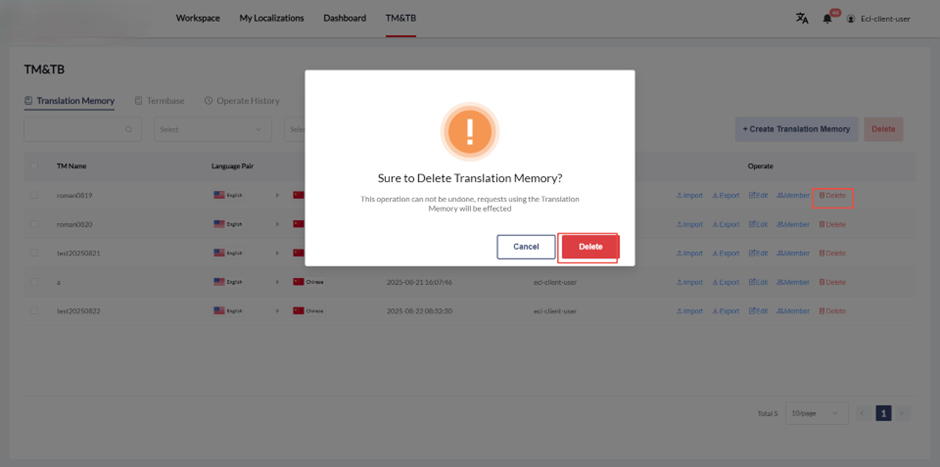
Deleting a TM
Click "Delete" in the TM row information to delete the corresponding TM.
TM Roles and Permissions
| Role | Delete TM Library | Edit and Import TM Library | Export TM Library | Add/Delete/Modify/Query Members and Roles | Apply TM in Projects |
|---|---|---|---|---|---|
| Owner | √ | √ | √ | √ | √ |
| Admin | × | √ | √ | √ | √ |
| Editor | × | √ | √ | × | √ |
| Viewer | × | × | × | × | √ |
Note: Only Owner and Admin can adjust roles.
- Owner can adjust all users to roles other than Owner
- Admin can adjust all roles except Owner and Admin